Send your first message through the relay
Four steps from a blank domain to a message received, plus a command-line check that separates wrong settings from wrong software configuration.
The goal of this page is one real message received. Four steps, in order — each one blocks the next.
The four steps
| # | Step | Guide |
|---|---|---|
| 1 | Verify domain ownership | Verify domain ownership |
| 2 | Add the sending domain and publish its records | Publish the relay sending domain records |
| 3 | Create an SMTP key | Create an SMTP key |
| 4 | Point your software at the relay | Point your software at the relay |
The order cannot be swapped. Without an activated domain you cannot create a key; without a key you cannot authenticate.
Test from the command line before touching your software
After step 3 you can test without changing anything in your software. It is worth doing: it separates "wrong settings" from "wrong software configuration" — two problems with identical symptoms.
Replace cfr_... with your SMTP key and example.com with an activated domain:
swaks --server smtp.cloudfly.vn:587 --tls \
  --auth-user apikey --auth-password 'cfr_xxxxxxxx_xxxxxxxxxxxxxxxxxxxx' \
  --from no-reply@example.com --to you@example.net \
  --header 'Subject: First test message' --body 'The relay is working.'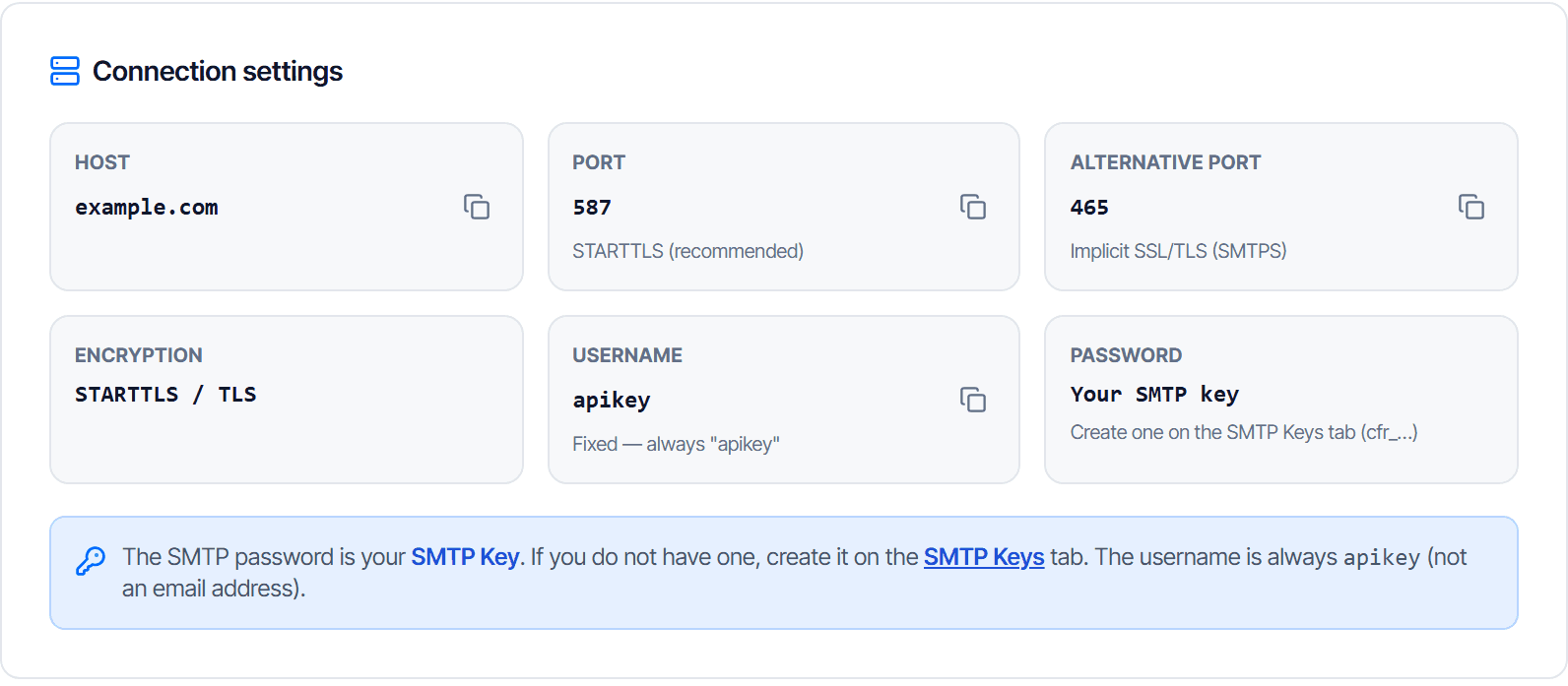
If that command goes through, the domain, the key and the network path are all correct. Anything that still fails afterwards is in your software's own configuration.
No swaks available? Skip this section and test with your software at step 4.
Three values people get wrong
| Field | Correct | Commonly mistyped as |
|---|---|---|
| Username | apikey | your email address |
| Password | the SMTP key cfr_... | your console login password |
| From | an address on an activated domain | a Gmail address or an inactive domain |
The first row is the most common of the three.
Check your work
Done when all three are true:
- The command or your software reports a successful send
- The message is in the receiving mailbox, junk folder included
- Email Relay → Stats & logs → Logs tab has a matching row
Point 3 is the easiest to skip and the most important: if the message arrives but the log is empty, the software is still sending the old way. The configuration has had no effect.
Landing in junk still counts as sent. To improve where messages land, start with the _dmarc record
on the sending domain page.
Next steps
| Goal | Page |
|---|---|
| Understand addresses that never arrive however often you send | Read and manage the suppression list |
| Messages send but do not arrive | Troubleshoot Email Relay |
| You need to send over HTTP instead of SMTP | What Email API is and when to use it |
About Email Relay
Send mail over SMTP from software you already run, without changing its code. This page helps you choose between Email Relay and Email API.
Sending domain
Add a sending domain for Email Relay then publish the signing and feedback records, without touching the mailboxes you already use.