Create an SMTP key
Generate the SMTP password for your software, save it at its one and only display, restrict it by IP where useful, and revoke it in the right order.
The SMTP key is the password your software uses to send. The username is the fixed value apikey.
Before you start
- At least one active domain in Email Relay. See Publish the relay sending domain records
- A safe place for secrets
With no active domain the page shows SMTP key cannot be created yet — the required order, not an error.
Create the key
- Go to Email Relay → SMTP Keys
- Click Create SMTP key
- Name it, for example
Online shop - Pick the domain in Sending domain for this key
- Create it
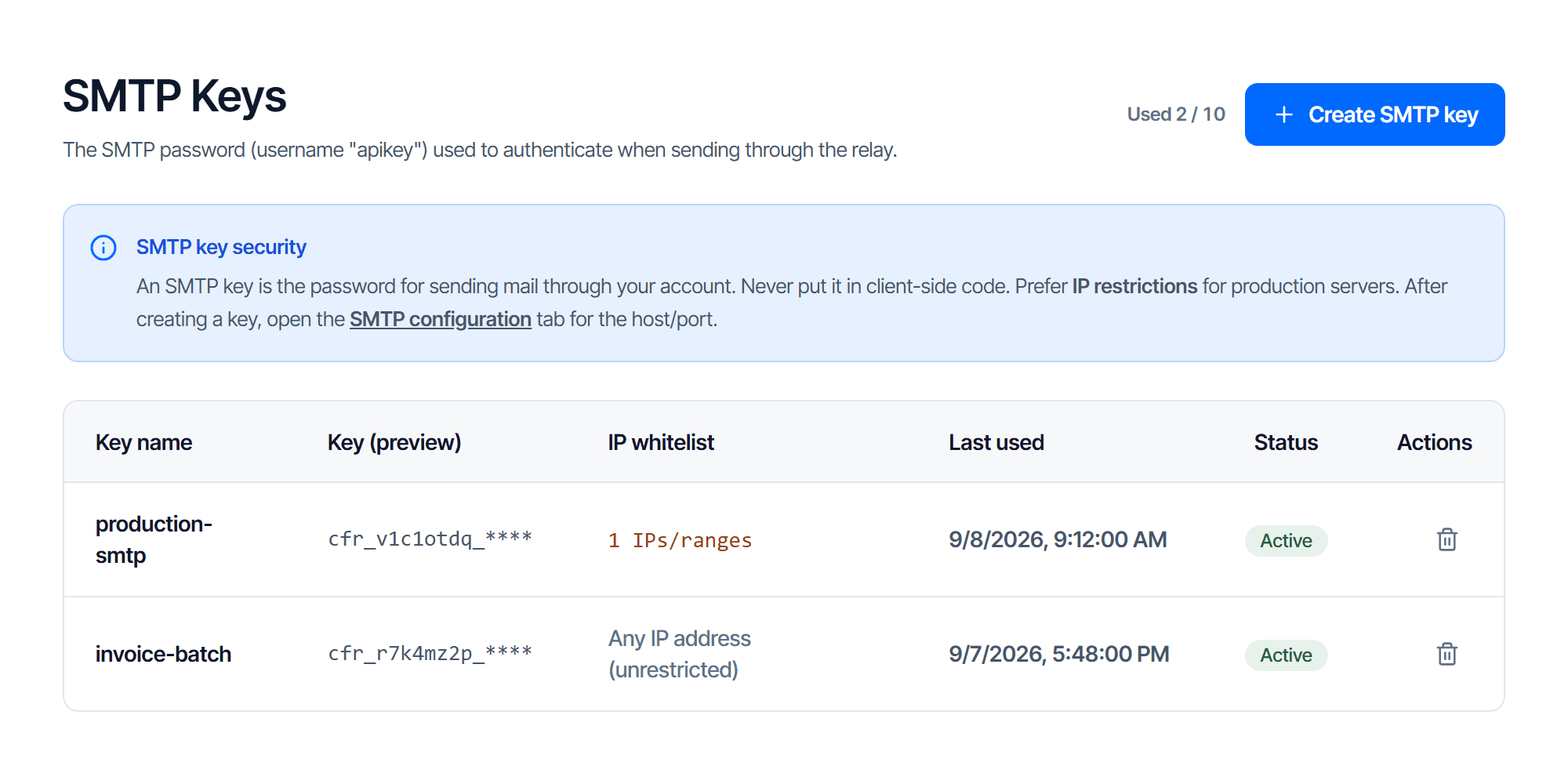
A key can only send from the domain picked when it was created. Picking the wrong one cannot be undone — you have to revoke it and create another. Re-read the domain field before creating; it only lists verified domains.
The table follows the domain you are viewing
The SMTP keys table only lists keys for the domain selected in the left-hand picker — a key you cannot find belongs to another domain, so switch the picker to see it.
Name keys after where they are used: when you need to revoke one, what you remember is "which piece of software".
Save the key immediately
The key is shown exactly once
The dialog after creation shows the whole key with a copy button and a confirmation button reading I have saved the key, close.
Closing the window loses it permanently. The system does not store it in the clear and cannot show it again, not even to support. Once lost, the only path is revoking that key and creating a new one.
The key preview column shows only the first characters. Store the key where your software reads its configuration, not in a source repository.
IP restriction
At creation you can set a list of IPs allowed to use the key. The IP whitelist column shows which keys are pinned and which are left as any IP.
| Software runs on | Do |
|---|---|
| A server with a fixed IP | Set a restriction — a leaked key is still unusable from elsewhere |
| Infrastructure with changing IPs | Do not — sending will stop at the worst possible moment, and the symptom looks exactly like a wrong password |
Do not set one when the software runs on infrastructure with changing IPs — sending will stop at the least convenient moment, and the symptom looks exactly like a wrong password.
Review periodically
The Last used column tells you which keys are alive. Never used on a key created long ago means it has never been used — either you configured a different key, or it was forgotten.
Revoke keys nobody uses. Every live key is another open door.
Revoke
Click Revoke at the end of the row. The confirmation prints the key name.
Revocation takes effect immediately — software using that key loses the ability to send at once. Revoked keys stay in the table with a Revoked badge so you can still cross-reference them.
To rotate a key on a running system:
- Create the new key
- Update the software configuration and restart it
- Watch the old key's Last used column stop updating
- Only then revoke the old key
If you suspect a leak, do the opposite — revoke first, accept the outage, then create a new one.
Check your work
The key works when your software sends a message successfully. See Point your software at the relay.
If authentication is rejected, check that the username is apikey before suspecting the key —
that is by far the more common cause.
Sending domain
Add a sending domain for Email Relay then publish the signing and feedback records, without touching the mailboxes you already use.
Point your app to relay
Get the four SMTP connection settings right, avoid the most common username mistake, and confirm mail really goes through the relay.