Point your software at the relay
Get the four SMTP connection settings right, avoid the most common username mistake, and confirm mail really goes through the relay.
Every piece of mail software asks for the same four things: server, port, username, password.
Before you start
- A sending domain that is active. See Publish the relay sending domain records
- A saved SMTP key. See Create an SMTP key
- Rights to change the software's mail settings
The four settings
Go to Email Relay → SMTP configuration. The connection settings block shows everything, with a copy button on each field.
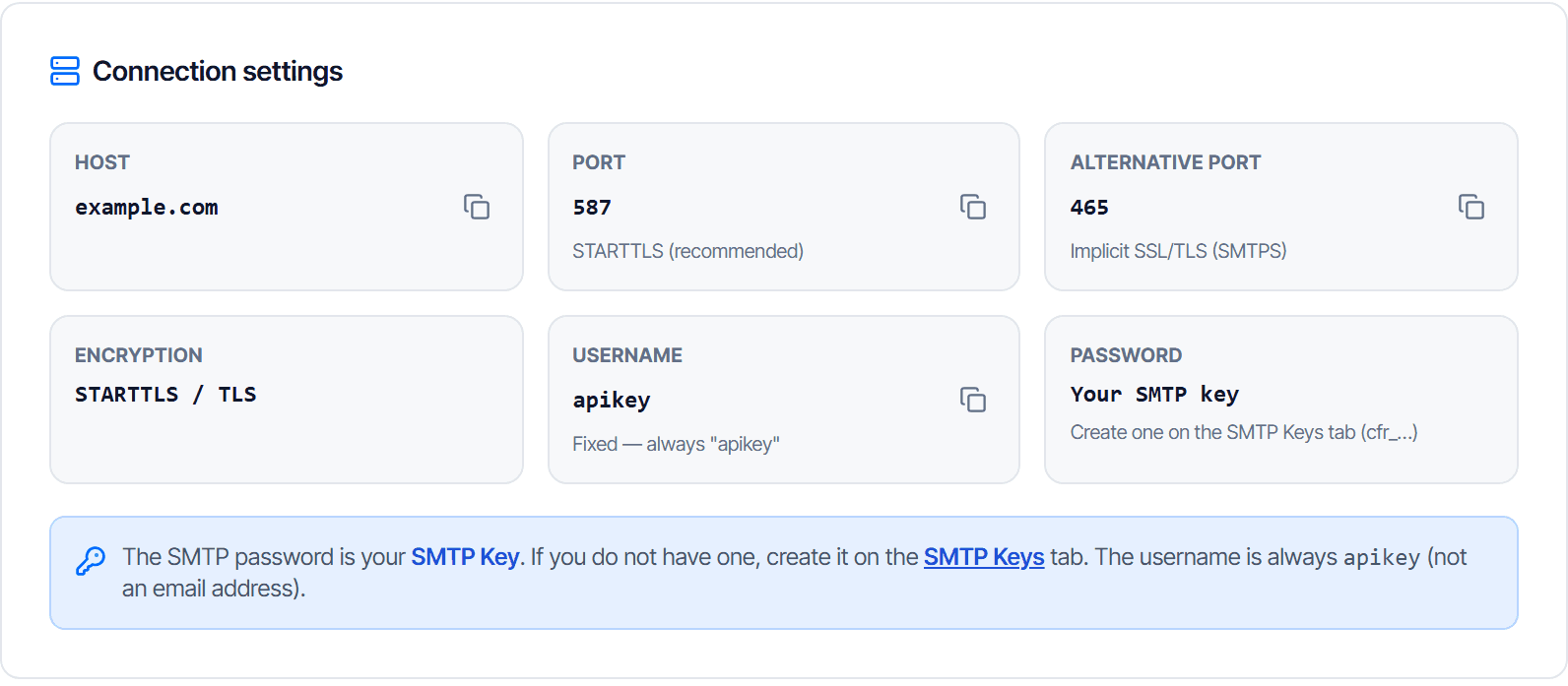
| Setting | Value |
|---|---|
| Host | smtp.cloudfly.vn |
| Port | 587 — STARTTLS, recommended |
| Alternative port | 465 — implicit SSL/TLS (SMTPS) |
| Username | apikey |
| Password | your SMTP key, shaped like cfr_... |
Use port 587 unless your software only supports implicit SSL — then use 465. Do not use an
unencrypted connection.
The username is always apikey, never your email address
This is the mistake made most often on a first setup. The username field takes the literal string
apikey — fixed, for every account and every domain.
Putting an email address there is rejected as an authentication failure, and the error looks exactly like a wrong password, which sends people looking in the wrong place.
The password is the SMTP key. It is not your console login password, and not any mailbox password.
The sender address must match the domain
The sender address field must hold an address on a domain activated in Email Relay.
These three fields are different and easily confused:
| Field | What goes in it |
|---|---|
| Username | apikey |
| Password | the SMTP key cfr_... |
| From / sender address | no-reply@example.com — an activated domain |
Sample configurations per platform
The sample configuration by platform section on that same page gives a copy-paste block with your server, port and domain already filled in.
Software without its own tab still works: anything that speaks SMTP takes the same four settings.
Message size
The size limit block states the ceiling for one message, counting attachments after encoding.
Large files should go as a download link: it stays under the limit and is less likely to be filed as junk.
Check your work
- Make the software send a real message to a mailbox you control
- The message arrives
- Open Email Relay → Stats & logs and find the matching row
Step 3 is the real confirmation: if the message arrives but no row appears in the logs, the software is still sending the old way.
When it will not send
In order:
- Authentication rejected. Check the username is the literal
apikey. Only then suspect the password. - Rejected for the sender address. The
Fromaddress is not on an activated domain, or the SMTP key is bound to a different domain. - Cannot connect. Your server blocks outbound mail ports. Try both
587and465; many hosting providers block mail ports by default and open them on request. - Sends but does not arrive. Not a connection problem — see Troubleshoot Email Relay.
Create an SMTP key
Generate the SMTP password for your software, save it at its one and only display, restrict it by IP where useful, and revoke it in the right order.
Suppression list
Understand why an address is suppressed, which ones you may remove and which you may not, and why bulk-clearing the list is a bad idea.