Product documentation
CloudFly VMail Docs
User guides for CloudFly VMail — two separate sections, one for whoever administers the company email services, one for whoever just uses a mailbox.
I administer my company's email services
You sign in at vmail.cloudfly.vn/admin
The console shows exactly the services your company bought — mailboxes, spam filtering, sending via API or SMTP.
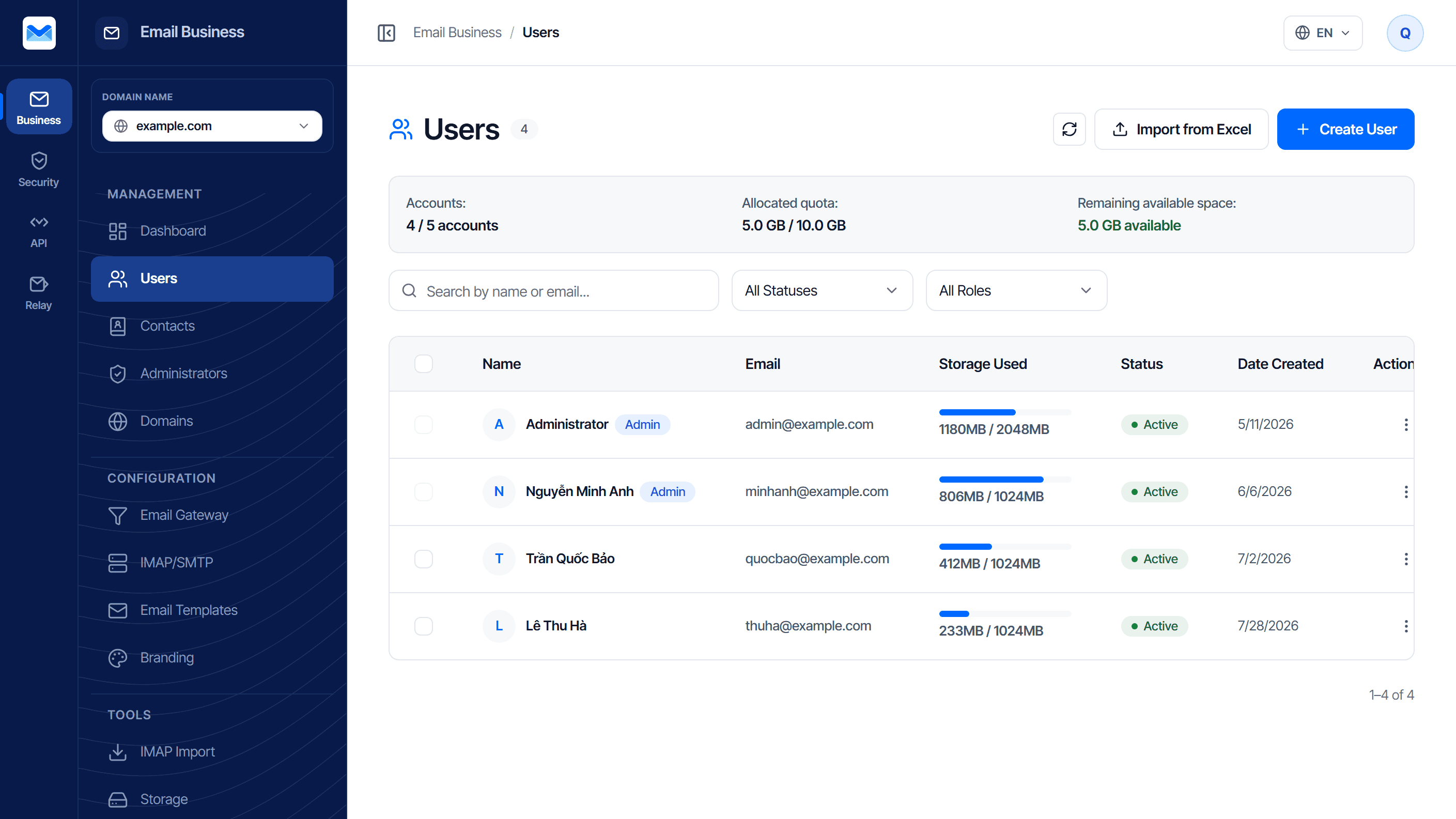
- Create mailboxes for staff, set quotas, reset passwords
- Publish DNS records and verify the domain
- Turn on spam filtering for the whole domain
- Connect an application to send mail via API or SMTP
I use a mailbox
You sign in at vmail.cloudfly.vn
You only see your own mailbox; domain settings and other people’s accounts are not part of this section.
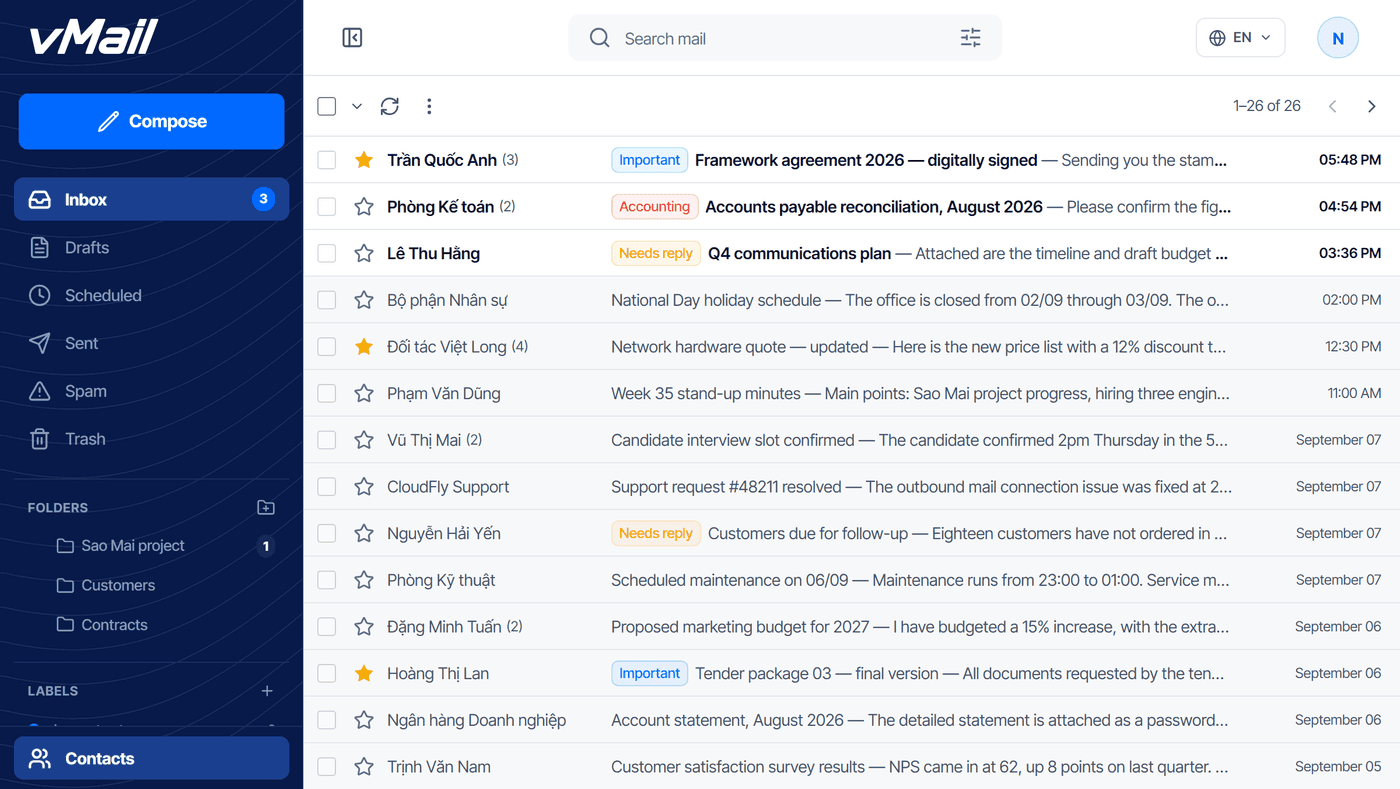
- Write, reply and schedule messages
- Set a signature and turn on auto-reply while away
- Organise folders, apply labels, find old mail
- Deal with spam and change your own password
Services
Four services on shared infrastructure, plus the platform layer all four rely on.
Platform
Domains, DNS records and administrators — the first thing to set up.
MailboxesEmail Business
Mailboxes for your staff: create accounts, set quotas, reset passwords.
Spam filteringEmail Security
Filter spam and malware before it reaches your own mail server.
Send via APIEmail API
Send transactional mail from your application over an HTTP API.
Send via SMTPEmail Relay
Send mail from an existing application over SMTP, no code changes.
Can't find what you need?
Call technical support, or message us on Zalo — someone is on duty during business hours.
0904 558 448Using your mailbox
No domain or DNS knowledge needed. Read Getting started first, then look the rest up as you go.
Three things to know first
Always copy configuration values from the console. MX, SPF and DKIM records differ per domain. These guides describe only their shape, so you know what you are looking at.
DNS records take time to propagate. Usually minutes, sometimes up to 24 hours. The platform re-checks on a schedule, so you do not need to stay on the page.
Mail configuration fails silently. A wrong record still saves successfully, mail still reports as sent, it just lands in the recipient's spam folder. That is why every guide has a Check your work section — do not skip it.