Create an API key
Pick the right key type for each application, save the key at its one and only display, and revoke it properly when it leaks.
An API key is how your application proves who it is when it calls the send endpoint.
Before you start
- At least one active domain in Email API. See Publish the sending domain records
- A safe place for secrets — a password manager, or your deployment platform's environment store
With no active domain the page shows API key cannot be created yet — the required order, not an error.
Two key types
Go to Email API → API keys: two tabs, each type with its own limit.
| Sending Key | Account Key | |
|---|---|---|
| Bound to one domain | yes, required | no |
| Can send from | only that domain | any domain on the account |
| Use for | applications in production | admin tools, internal scripts |
Create a Sending Key by default: a leak stops at exactly one domain.
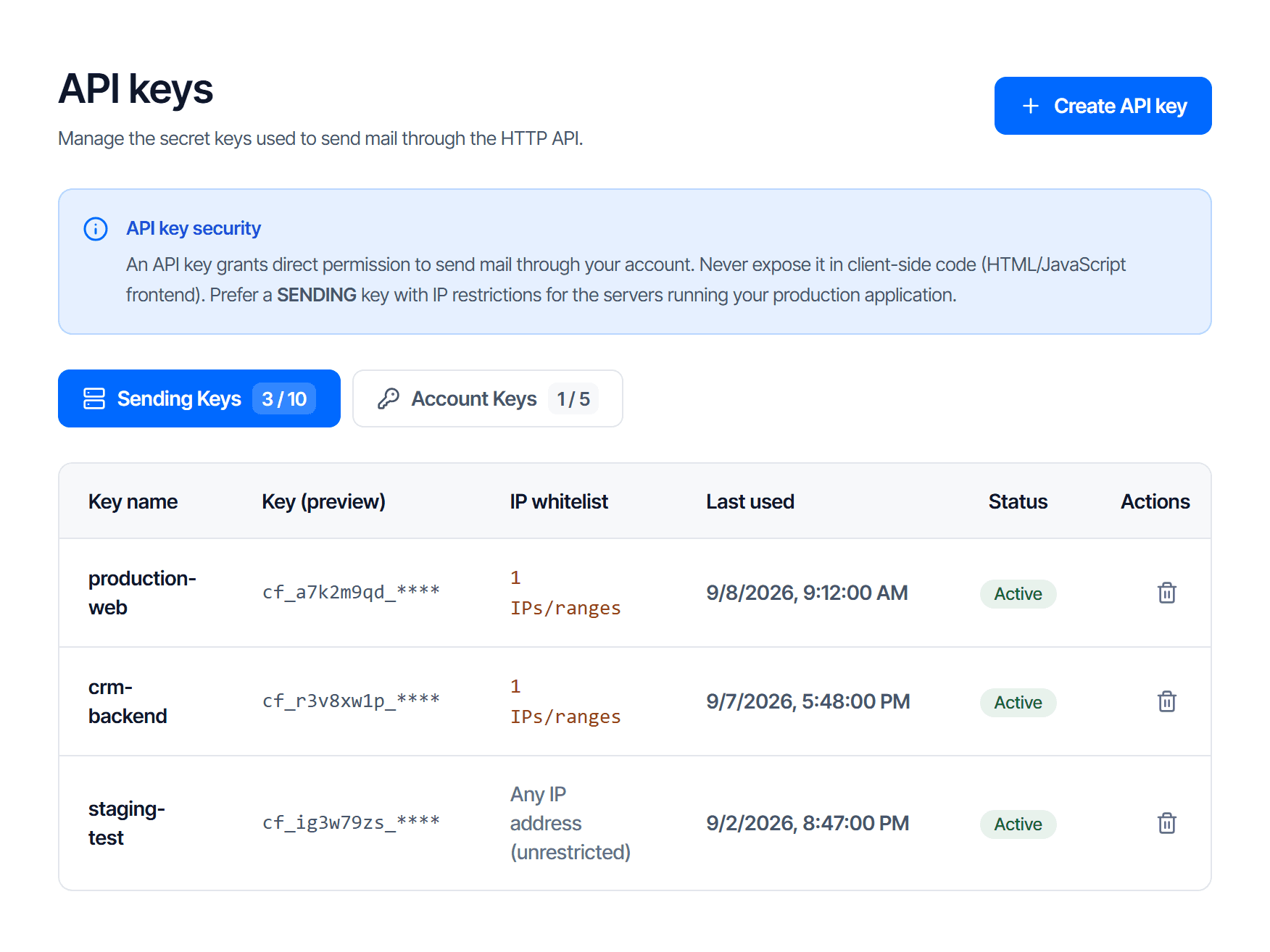
A Sending Key binds hard to one domain
The domain you pick in the dialog is permanent — you have to delete the key and create another to change it. Re-read the Sending domain for this key field before clicking create; it only lists verified domains.
Create the key
- Select the right tab, Sending Keys or Account Keys
- Click Create API key
- Give it a name, for example
Order server - For a Sending Key: pick the domain in Sending domain for this key
- Create it

Name keys after where they are used: when you need to revoke one, what you know is "which server".
Save the key immediately
The key is shown exactly once
After creation the dialog shows the whole key with a copy button. Closing it loses the key permanently — the system does not store it in the clear and cannot show it again, not even to support.
Copy and store it before closing. Once lost, the only path is deleting that key and creating a new one.
The key preview column shows only the first characters — enough to tell keys apart.
The table follows the domain you are viewing
The Sending Keys tab only lists keys for the domain selected in the left-hand picker — a key you cannot find belongs to another domain, so switch the picker to see it. Account Keys are account-wide and always show in full.
Store it in environment variables: a key in a repository is a leaked key.
Never put a key in the browser
Anyone who can read the key can send mail using your domain.
So do not put one in website JavaScript or a mobile app — the send call must originate from your server.
See where keys are used
Two columns help with periodic review:
| Column | Tells you |
|---|---|
| IP whitelist | whether the key is pinned to a range |
| Last used | which keys are forgotten — empty or very old means nobody uses it |
Delete keys nobody uses — every live key is another open door.
Revoke a key
Click Delete API key at the end of the row; the confirmation prints the key name.
Deletion takes effect immediately. To rotate a key on a running system:
- Create the new key
- Update the application configuration and deploy
- Watch the old key's Last used column stop updating
- Only then delete the old key
If you suspect a leak, do the opposite: delete first, accept the outage.
Check your work
The key works when your first send call returns an accepted status — see Send your first message with Email API.
| Rejected on | Means |
|---|---|
| authentication | the key is wrong or deleted |
| permission | the key is right, but the from address is not on the domain the Sending Key is bound to |
Sending domain
Add a sending domain for Email API then publish the signing and feedback records, without touching the mailboxes you already use.
Event webhooks
Configure an endpoint so your code knows whether a message arrived or failed, pick the right events, and verify the signature so you cannot be fed fake data.