Change your password and adjust the interface
Change your mailbox password, update your display name, switch between light and dark mode or another language, and what to do right after a password change.
Four things you can do for your own mailbox without asking an administrator.
Before you start
- You can sign in to your mailbox on webmail
Change your password
- Click your name in the top right corner and choose Security Settings
- Click Change Password
- Fill in Current Password, New Password and Confirm New Password
- Save
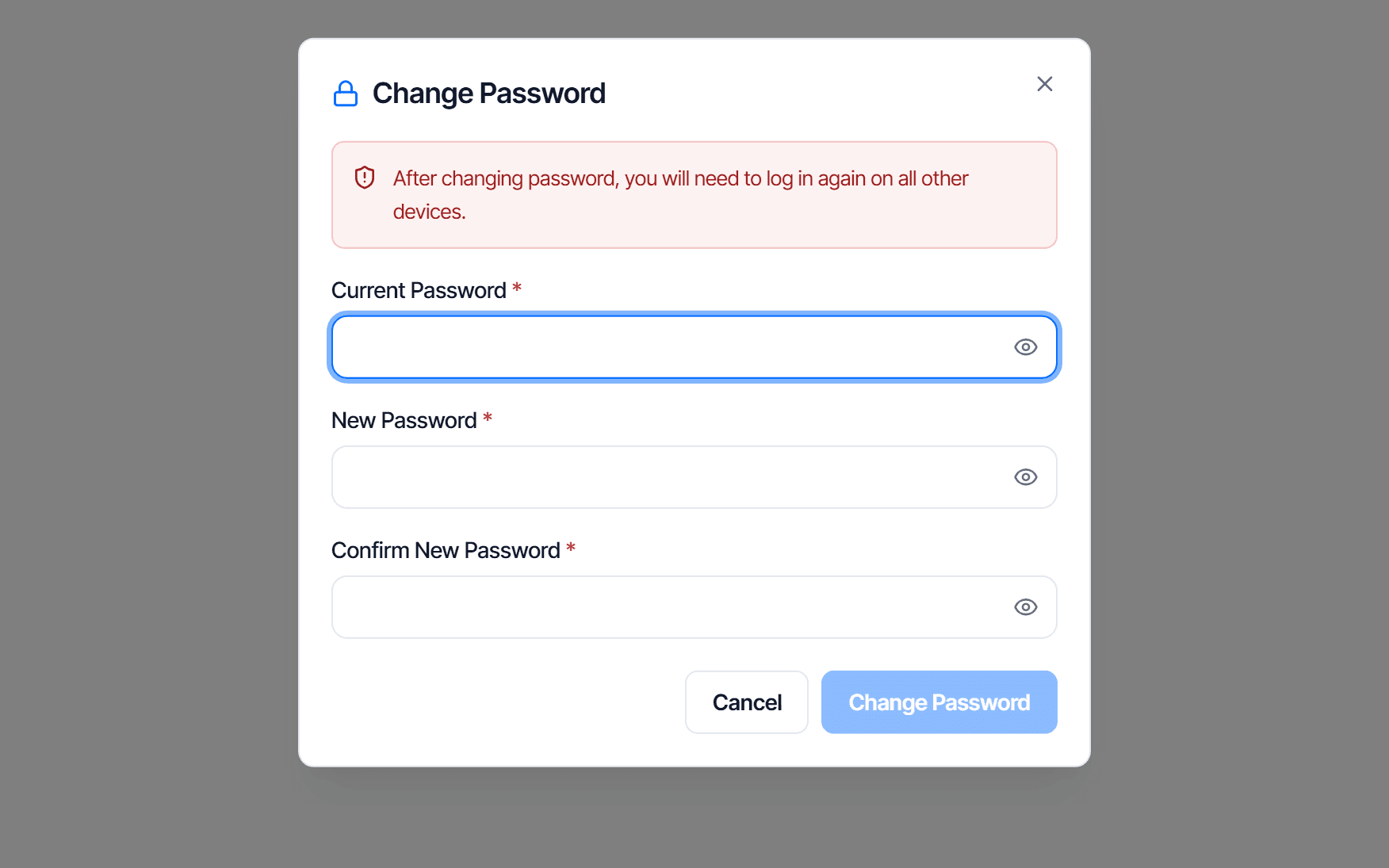
Changing the password signs you out everywhere else
Afterwards you have to sign in again on every other device — phone, Outlook, desktop mail apps, and the scan-to-email function on a printer if you have one.
Apps still holding the old password will keep failing to sign in, and that can get the account temporarily locked. Update each app immediately after the change rather than leaving it.
If you have forgotten the password you cannot reset it yourself — the mailbox is managed by your domain administrator. Contact them for a reset.
Change your display name
Go to Settings → Personal Info. Edit Full Name, then click Save Changes.
This is the name people see next to your email address. Mobile Number is edited here too.
The email address itself cannot be changed — it is your sign-in identity, and changing it would mean a different mailbox. If you need another address, ask your domain administrator to create one.
Choose the appearance and language
Go to Settings → Webmail Customization.
| Setting | Options |
|---|---|
| Appearance Mode | Light · Dark |
| Display Language | Tiếng Việt · English |
Changing the language changes the interface only; it does not translate message content.
See how much storage you have used
The USAGE LIMIT card in the left column of Settings shows storage used against your allowance, with a bar that changes colour as you fill it.
You can also see it without opening Settings: scroll to the bottom of the message list — right below the last message is the bar and the line … of … used.
When it is getting full, clear space in this order — most space freed for the least effort:
- Trash — delete permanently. Mail here still counts against your storage
- Spam — usually the largest group you do not need to keep
- Old mail with heavy attachments — find it with advanced search using Has attachment and Size Greater than
A full mailbox stops receiving new mail, and senders get a failure report. Clear space before you reach that point rather than after.
Check the result
- Password change — sign out and back in with the new password
- Display name — send yourself a message and look at the name shown in the inbox
- Appearance or language — applies immediately, no reload needed
Common problems
| Symptom | Cause |
|---|---|
| The password will not change | Current Password is wrong, or the two new password fields do not match |
| Your phone reports a wrong password afterwards | Normal — update the new password in the mail app on that device |
| Recipients still see the old display name | Messages sent before the change keep the old name; new ones are correct |
| The email address field is not editable | Working as designed — the address is your sign-in identity |
Spam
Report a message as spam, recover a real message that landed in Spam, and know when the fix has to come from your domain administrator instead.
Two-step verification
Add a layer of protection to Webmail sign-in with a 6-digit code from an authenticator app, save recovery codes, and handle a phone change or loss.