Schedule a message to send later
Have a message go out at a time you choose instead of immediately, review what is still waiting, and cancel a schedule before the message leaves.
Write now, let the system send at a time you pick. Useful when you work outside office hours but do not want your mail arriving in the middle of the night.
Before you start
- You can sign in to your mailbox on webmail
Pick a preset time
- Write the message as usual — recipients, subject, body
- Click the down arrow immediately to the right of the send button, not the send button itself
- Choose one of the entries
| Entry | Time |
|---|---|
| This afternoon | 13:00 today — shown only while it is still earlier than 13:00 |
| Tomorrow morning | 08:00 tomorrow |
| Tomorrow afternoon | 13:00 tomorrow |
| This weekend | 08:00 on the next Saturday |
| Next week | 08:00 on the next Monday |
Each row shows the actual date and time on the right. Read that rather than guessing from the name — This weekend on a Sunday afternoon means the Saturday of the following week.
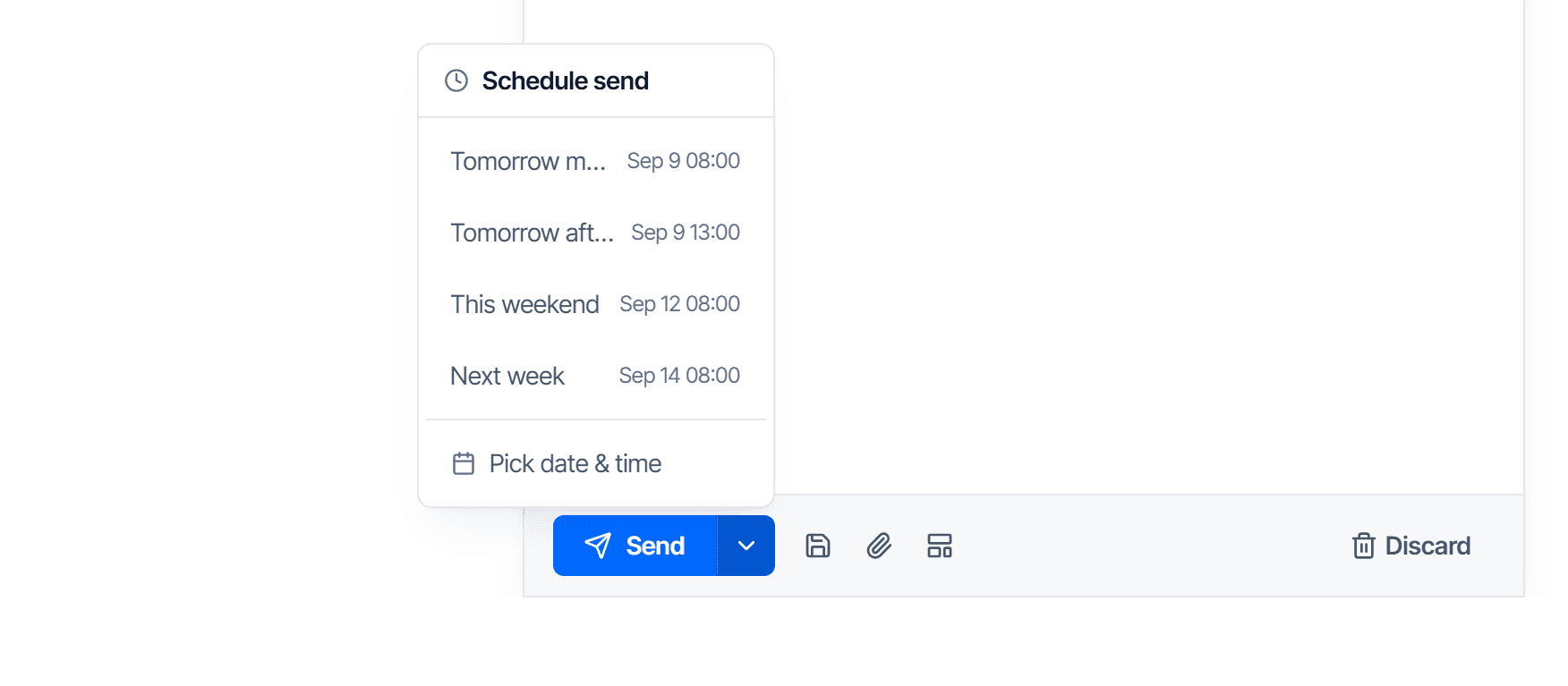
Clicking is all it takes; the message moves to the waiting state straight away.
Or pick an exact date and time
- Click Pick date & time at the bottom of the list
- Choose a day in the calendar — past days are greyed out and cannot be selected
- Fill in hours, minutes and seconds on the Time row
- Click Schedule
Choosing a moment in the past shows Please select a time in the future and nothing is scheduled. The time follows the clock on the device you are using.
See what is waiting
Scheduled in the left sidebar lists every message waiting for its time, each with a Scheduled for line giving the exact moment.
Waiting messages are not in Drafts — the two are kept apart.
Cancel before it goes
- Open Scheduled
- Select the message
- Click Cancel schedule
The message returns to Drafts with its content and recipients intact.
Once the time passes there is no recall
Cancelling only works before the scheduled moment. A message that has gone cannot be retrieved, the same as any normal message. If you want room to change your mind, schedule it a little further out.
Check the result
Open Scheduled and compare the Scheduled for line with the time you intended. This is the only confirmation worth trusting — the on-screen notice disappears too quickly to read.
At the appointed time the message leaves Scheduled and appears in Sent.
Common problems
| Symptom | Cause |
|---|---|
| The message goes immediately, with a notice that the server does not support scheduling | Your mailbox is on a server without this feature enabled. Tell your domain administrator |
| This afternoon is missing from the list | It is already past 13:00. That entry appears only while there is still time |
| You clicked an entry but the message is still in the editor | You clicked the send button itself instead of the arrow beside it |
| A scheduled message is not in Drafts | Working as designed — it is in Scheduled |
Waiting messages count against your mailbox storage like any other. See Mailbox folder and label reference.
Auto-reply
Set an automatic reply for your mailbox, limit the period it runs for, and avoid the mistakes that leave senders with the wrong message or none at all.
Find old mail
Use the quick search box and the advanced search panel to filter by sender, date range, size and attachments when you cannot recall the exact wording.