Handle spam and wrongly filtered mail
Report a message as spam, recover a real message that landed in Spam, and know when the fix has to come from your domain administrator instead.
Incoming mail passes a filtering layer before it reaches your mailbox. Every filter gets it wrong sometimes, in both directions.
Before you start
- You can sign in to your mailbox on webmail
Report a message as spam
- Select the message in Inbox
- Click Report spam
The message moves to Spam. The button sits both on the toolbar when messages are selected and in each message's More menu.
Never reply to spam
Replying, following a link or clicking unsubscribe inside a fraudulent message all confirm that your address is live. Report it and delete it — that is enough.
Recover a real message from Spam
- Open Spam in the left sidebar
- Select the message
- Click Not spam
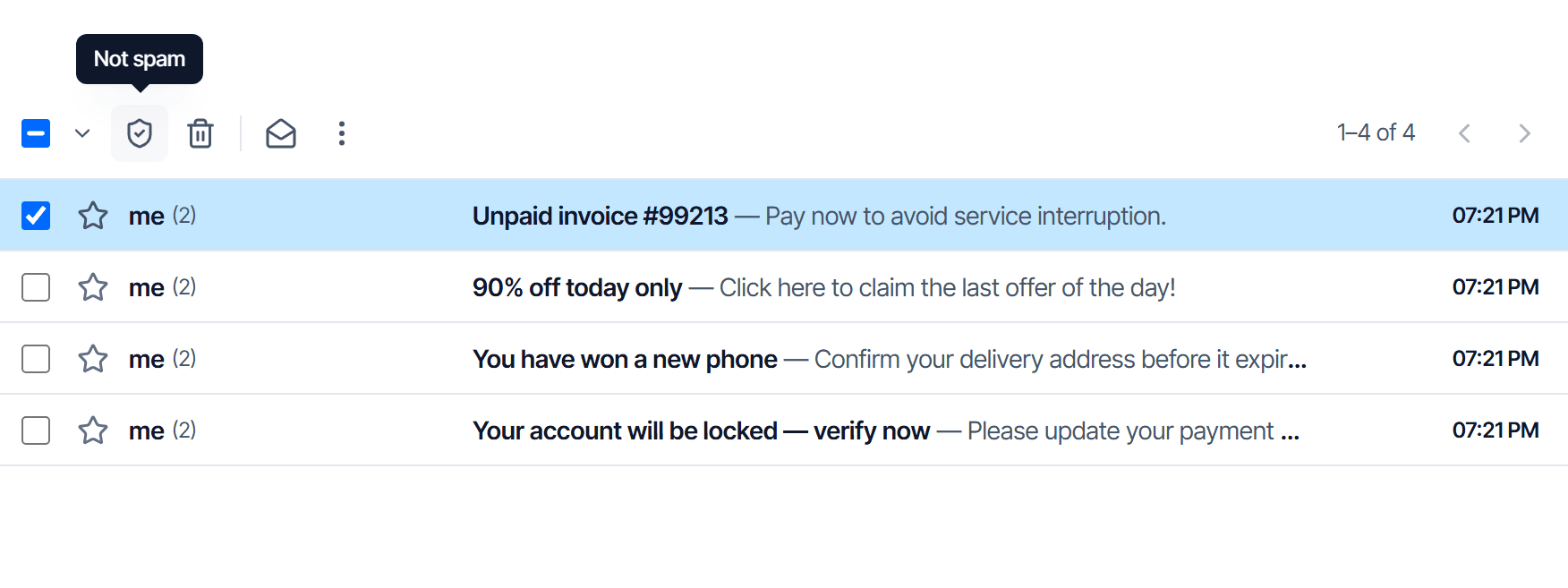
The message leaves Spam and returns to your mailbox.
When the same sender keeps being filtered
Not spam only handles one message at a time. If an important sender lands in Spam every time, send your domain administrator:
- the sender's address, or their whole domain
- one recent example message
They add it to the trusted list at the mail gateway — see Allow or block a sender at the mail gateway. You cannot do that from your mailbox.
Check the result
After you click Not spam, the message is no longer in Spam. Confirm it landed correctly by searching for the sender with the scope set to All Mail.
Common problems
| Symptom | Cause | Fix |
|---|---|---|
| An important message never arrived, and Spam is empty too | It was blocked before reaching the mailbox | Tell your domain administrator, with the send time and the sender address |
| Not spam clicked, yet that sender is still filtered | The decision happens at the gateway, not in the mailbox | Ask the administrator to add them to the trusted list |
| A message deleted from Spam is not in Trash | Inside Spam, the delete button is Delete permanently | Check the content before deleting; this cannot be undone |
Cannot find one specific message: see Mailbox folder and label reference, section Where a message can be when you cannot find it.
Find old mail
Use the quick search box and the advanced search panel to filter by sender, date range, size and attachments when you cannot recall the exact wording.
Password & appearance
Change your mailbox password, update your display name, switch between light and dark mode or another language, and what to do right after a password change.