Turn on an auto reply while you are away
Set an automatic reply for your mailbox, limit the period it runs for, and avoid the mistakes that leave senders with the wrong message or none at all.
While you are on leave or travelling, your mailbox replies for you so people know you have not read their message.
Before you start
- You can sign in to your mailbox on webmail
Open the auto reply page
Go to Settings → Auto Reply.
Pick how long you are away
Click one of Today · Rest of the week · 1 week · 2 weeks and both times are filled in for you. Need something else? Edit the two fields below.
An end time is the default. To run without one, pick Until I turn it off myself.
Let the system switch it off for you
Without an end time the auto reply runs until you remember — usually after someone asks "are you still away?".
Write the message
Fill in Auto Reply Message: how long you are away, who to contact if it is urgent, and that you will reply when you are back.
Insert date drops the end date at your cursor, and follows along if you move the schedule.
The What people will see box below the field is exactly what they receive.
Do not spell out why you are away
This message goes to anyone who writes to you, including strangers and marketing lists. "I am on holiday until the 20th and nobody is at home" is not something you want sent to strangers.
Then click Turn on auto reply.
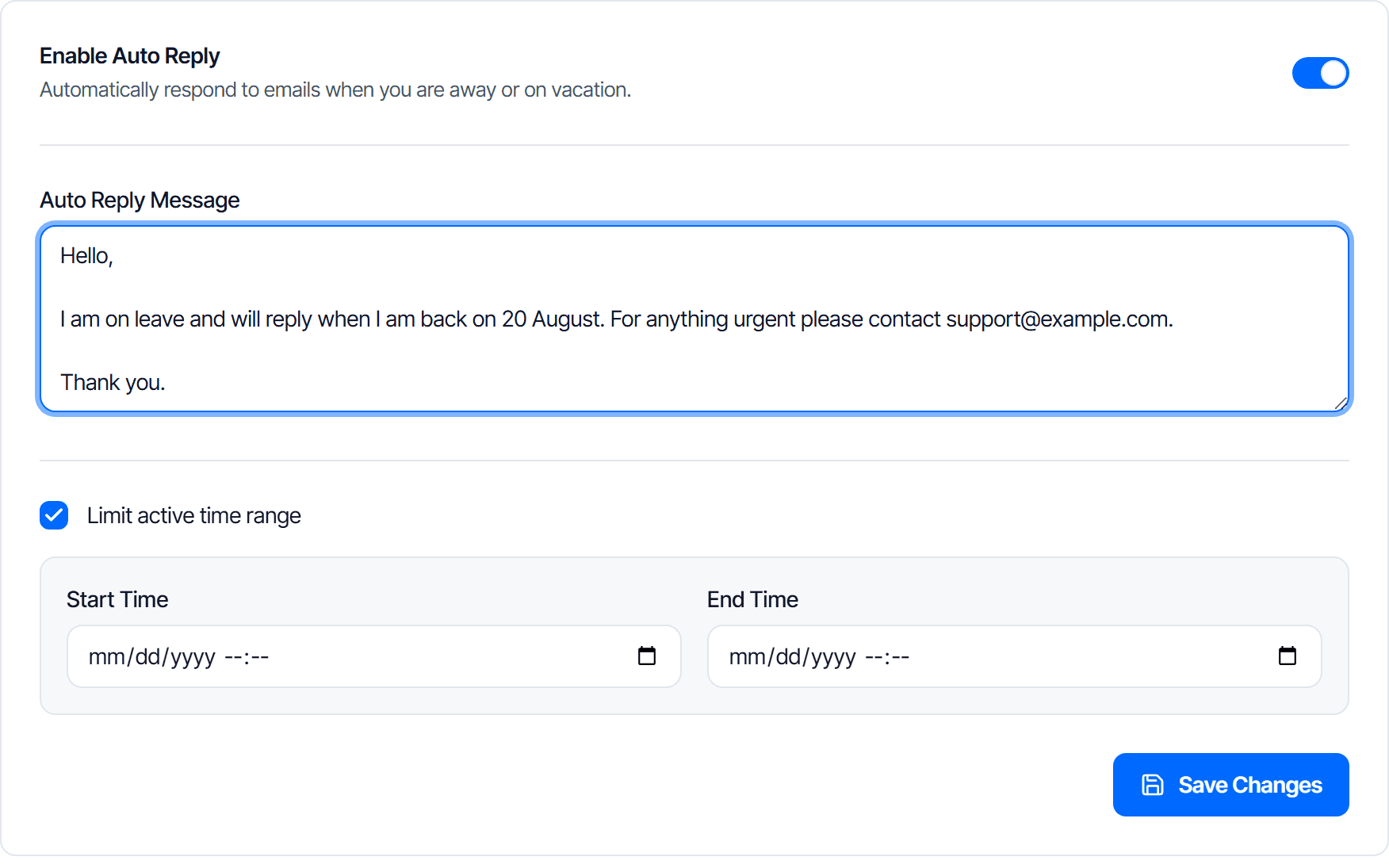
Write separately for people outside the company
Tick Write a separate message for people outside the company to open a second message box. Someone outside the company is anyone whose email address is not on your domain.
Follow it and turn it off
| State | What you see |
|---|---|
| Away | A banner above your mailbox: Auto reply is on, with Edit and Turn off now |
| The absence has ended | The banner becomes That absence has ended, with Clear old schedule |
| Nothing scheduled | No banner. The settings page reads No absence scheduled |
Whatever you wrote is kept, even after you turn it off or clear the schedule.
Advanced options
Open Advanced options if you need Do not reply to people outside your organisation, or want to change the gap between two auto replies to the same person.
Do not make the gap too short
Two mailboxes with auto reply on can answer each other, and this gap is what stops that loop.
Check the result
Ask someone outside the company to send you a message, then ask whether they got the auto reply.
Mailing yourself proves nothing
The system skips the mailbox owner and addresses that recently received an auto reply.
Common problems
| Symptom | Cause |
|---|---|
| A sender says they got no auto reply | Start Time has not arrived yet, the absence has ended, or you picked Do not reply to people outside your organisation |
| Cannot turn it on | Auto Reply Message is empty, Start Time is missing, or End Time is not after the start time |
| Save Changes is greyed out | Nothing has changed since the last save |
| The auto reply still goes out after your leave ended | End Time is wrong, or you picked Until I turn it off myself |
| One sender got it once despite writing several times | Normal — that is the gap in Advanced options |
| Text formatting or images in the auto reply do not show up | Auto replies are always sent as plain text |
Templates
Save the subject and body of a message as your own template, insert it in two clicks, overwrite it to fix mistakes, and delete it when you no longer need it.
Schedule send
Have a message go out at a time you choose instead of immediately, review what is still waiting, and cancel a schedule before the message leaves.