Create an email signature and choose when it applies
Create one or more signatures for your mailbox, pick the default for new messages and for replies, and set where the signature sits relative to quoted text.
A signature is the closing block appended to the messages you send. Create several, and choose which applies to new messages and which to replies.
Before you start
- You can sign in to your mailbox on webmail
Open the signature page
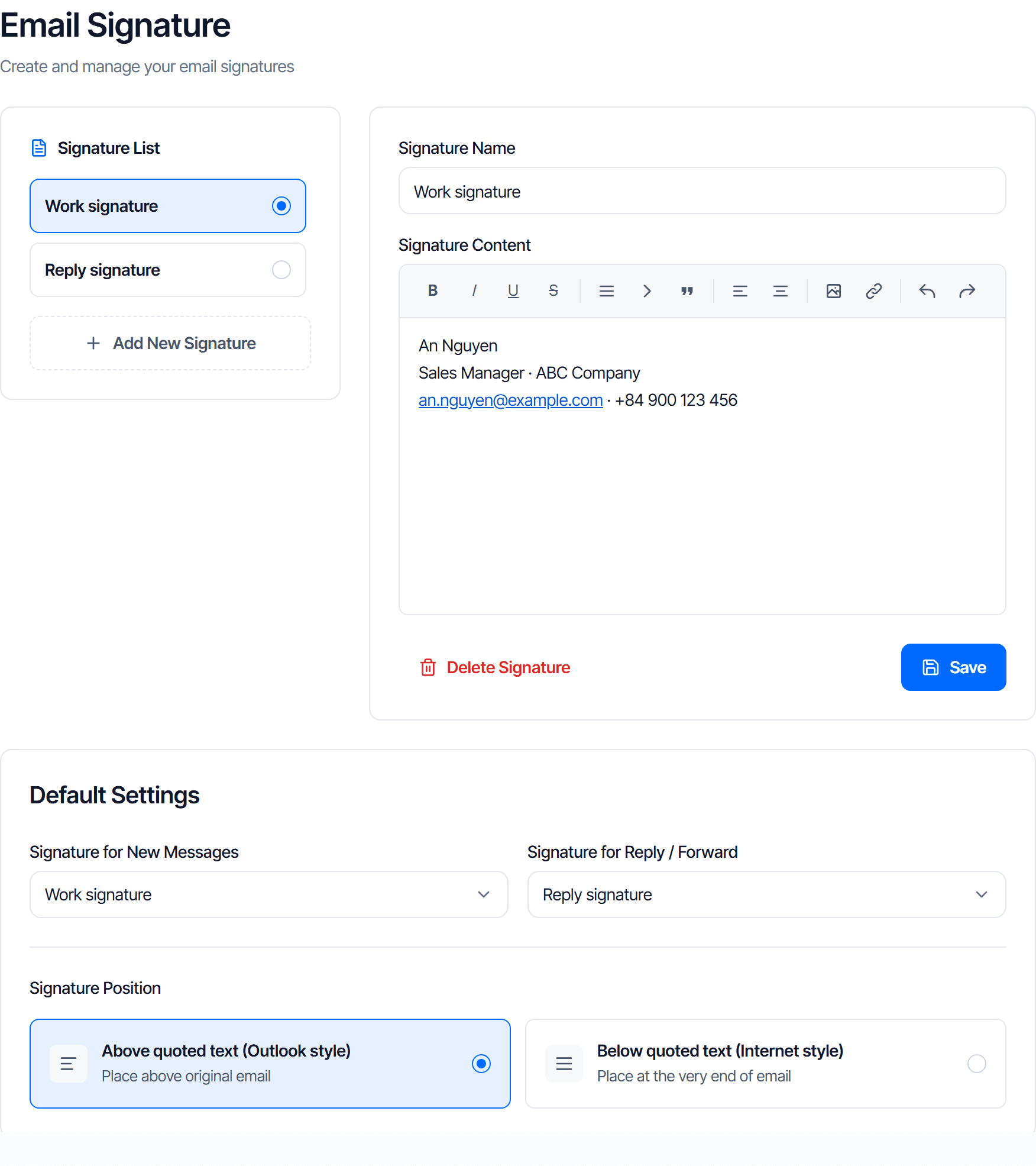
Click your name in the top right corner and choose Signature Settings. The page has three parts: Signature List, the editor, and Default Settings.
Create your first signature
- Click Add New Signature
- Fill in Signature Name — only you see this; it tells your signatures apart. For example Work Signature
- Write the Signature Content in the editor below. It supports bold, italic, colour and links
- Click Save
The new signature appears in Signature List. Click it to edit or Delete Signature.
Two signatures is a good default
A full one for new messages — name, job title, phone, company. A short one for replies — just name and phone. A ten-message thread carrying the full block every time is hard to read.
Choose the defaults
Creating a signature is not enough — this easily missed step is why "I made a signature but my mail goes out without one".
Under Default Settings, set two fields:
| Field | Applies to |
|---|---|
| Signature for New Messages | Messages you compose from scratch |
| Signature for Reply / Forward | Replies and forwarded messages |
Both offer No signature.
Set the signature position
Signature Position decides where the signature goes when you reply to a message that carries quoted text.
| Option | The signature sits |
|---|---|
| Above quoted text (Outlook style) | Right under what you just wrote, above the original message |
| Below quoted text (Internet style) | Last, after the entire original message |
Unsure? Pick Above quoted text: the recipient sees the signature without scrolling through the earlier thread.
Check the result
- Click Compose
- The signature you set under Signature for New Messages should already be in the editor
Nothing there is almost always a missing Default Settings entry.
Then open any message, click Reply, and compare the signature and its position against the two fields you set.
Common problems
| Symptom | Cause |
|---|---|
| Signature created but new messages have none | Signature for New Messages was never set |
| New messages have a signature, replies do not | Signature for Reply / Forward is set to No signature |
| The signature ends up at the bottom of a long thread where nobody sees it | Signature Position is set to Below quoted text |
| Save does nothing | Signature Name is empty — that field is required |
Signatures apply only to messages composed on webmail. Desktop and phone mail apps have their own signature setting, independent of this page.
Reply and organise
Reply, reply all and forward a message, act on several messages at once, then build your own folders and labels so the Email Business inbox stays manageable.
Templates
Save the subject and body of a message as your own template, insert it in two clicks, overwrite it to fix mistakes, and delete it when you no longer need it.