Find an old message in your mailbox
Use the quick search box and the advanced search panel to filter by sender, date range, size and attachments when you cannot recall the exact wording.
The search box at the top covers most cases. When it returns too much, use the advanced search panel.
Before you start
- You can sign in to your mailbox on webmail
Quick search
Type into the Search mail box and press Enter. It considers sender name, subject and body alike — use it when you remember a distinctive phrase.
Open advanced search
Click Advanced Search to the right of the search box.
Fill in only what you are sure of and leave the rest empty. Filled fields combine.
The filter fields
| Field | Use when |
|---|---|
| From | You remember who sent it. A partial address is enough |
| To | Looking for something you sent to someone |
| Subject | You remember a word from the subject line |
| Has the words | You remember a phrase from the body |
| Doesn't have | Cutting noise out — for example excluding invoice while looking for contract mail |
| Size | Choose Greater than or Less than and enter a size |
| Date | Narrow by time, see below |
| Search in | Restrict to one folder, or leave it on All Mail |
| Has attachment | Keep only messages with files attached |
The Date field counts back from today: 1 day, 3 days, 1 week, 2 weeks, 1 month, 6 months, 1 year, or Anytime.
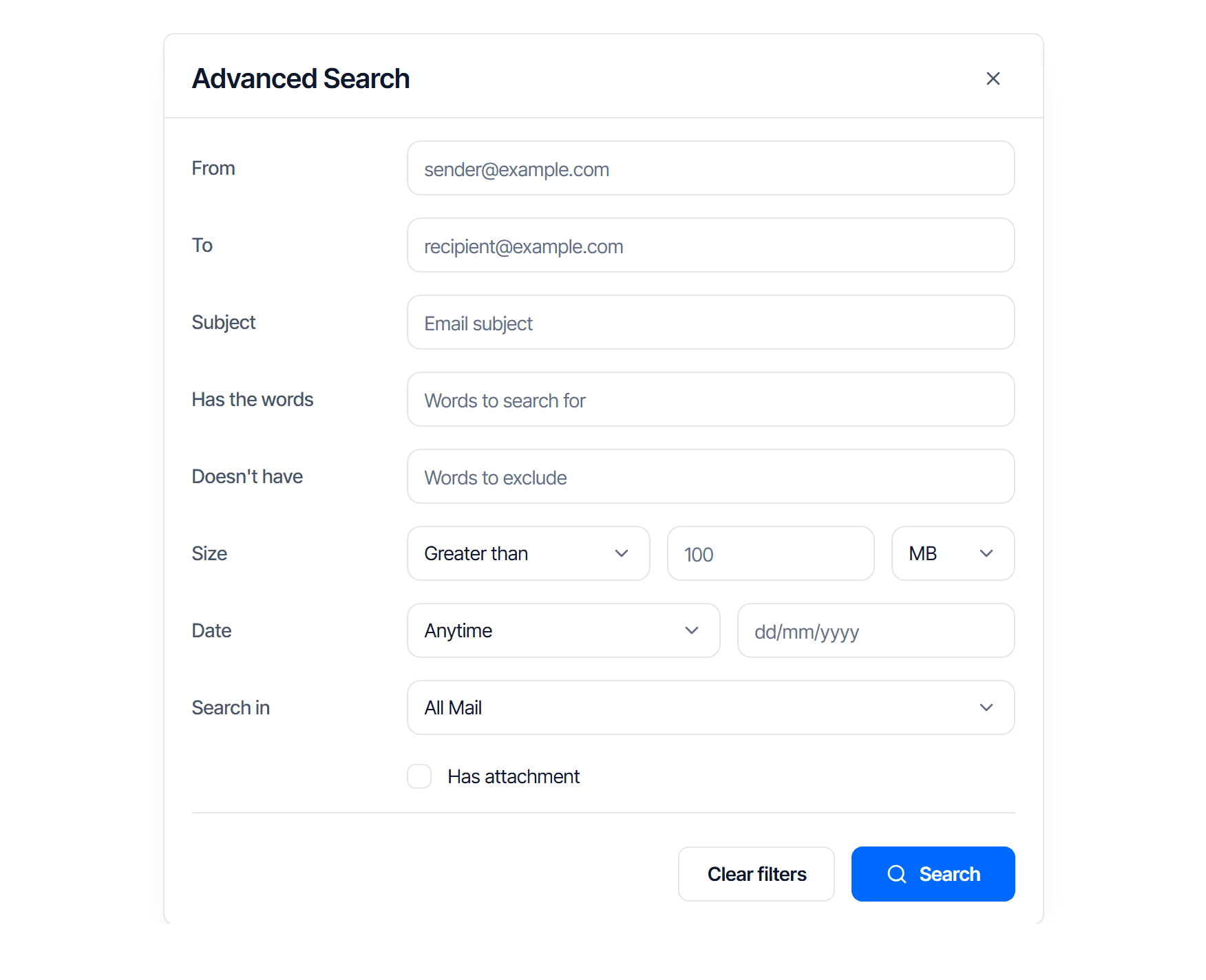
Click Search to run it. Click Clear filters to empty every field.
Three approaches that work
| Situation | What to do |
|---|---|
| No memory of the wording, only the sender | Fill in From alone, set Date to 1 year ago — scanning by date is usually faster than trying to recall a keyword |
| Looking for a file you received | Tick Has attachment, set Size to Greater than 1 MB — that cuts out almost all ordinary mail |
| Still too many results | Use Doesn't have with a word that only appears in the noisy group; more effective than adding words to Has the words |
Do not narrow Search in when hunting for a lost message
This field defaults to All Mail, which already includes Spam and Trash — the two places a "missing" message usually is. Choosing a specific folder excludes them.
The six options are All Mail, Inbox, Sent, Drafts, Spam and Trash. See also Mailbox folder and label reference.
Check the result
The list switches to Search results. Click Exit search to go back.
If nothing comes back, remove one filter and search again — one at a time, so you learn which field was excluding the message you wanted.
Common problems
| Symptom | Cause |
|---|---|
| No results although the message definitely exists | One filter is too narrow, usually Date or Search in |
| Found the message but not the rest of its thread | Long threads spread across folders; set Search in back to All Mail |
| A full address in From returns nothing | The sender used a different address from the one displayed; try the domain part only |
Schedule send
Have a message go out at a time you choose instead of immediately, review what is still waiting, and cancel a schedule before the message leaves.
Spam
Report a message as spam, recover a real message that landed in Spam, and know when the fix has to come from your domain administrator instead.