Reply to mail and organise your inbox
Reply, reply all and forward a message, act on several messages at once, then build your own folders and labels so the Email Business inbox stays manageable.
The mailbox groups messages on the same subject into one conversation. Opening it shows every exchange, with the newest message already expanded.
Before you start
- You can sign in to your mailbox on webmail
Reply to a message
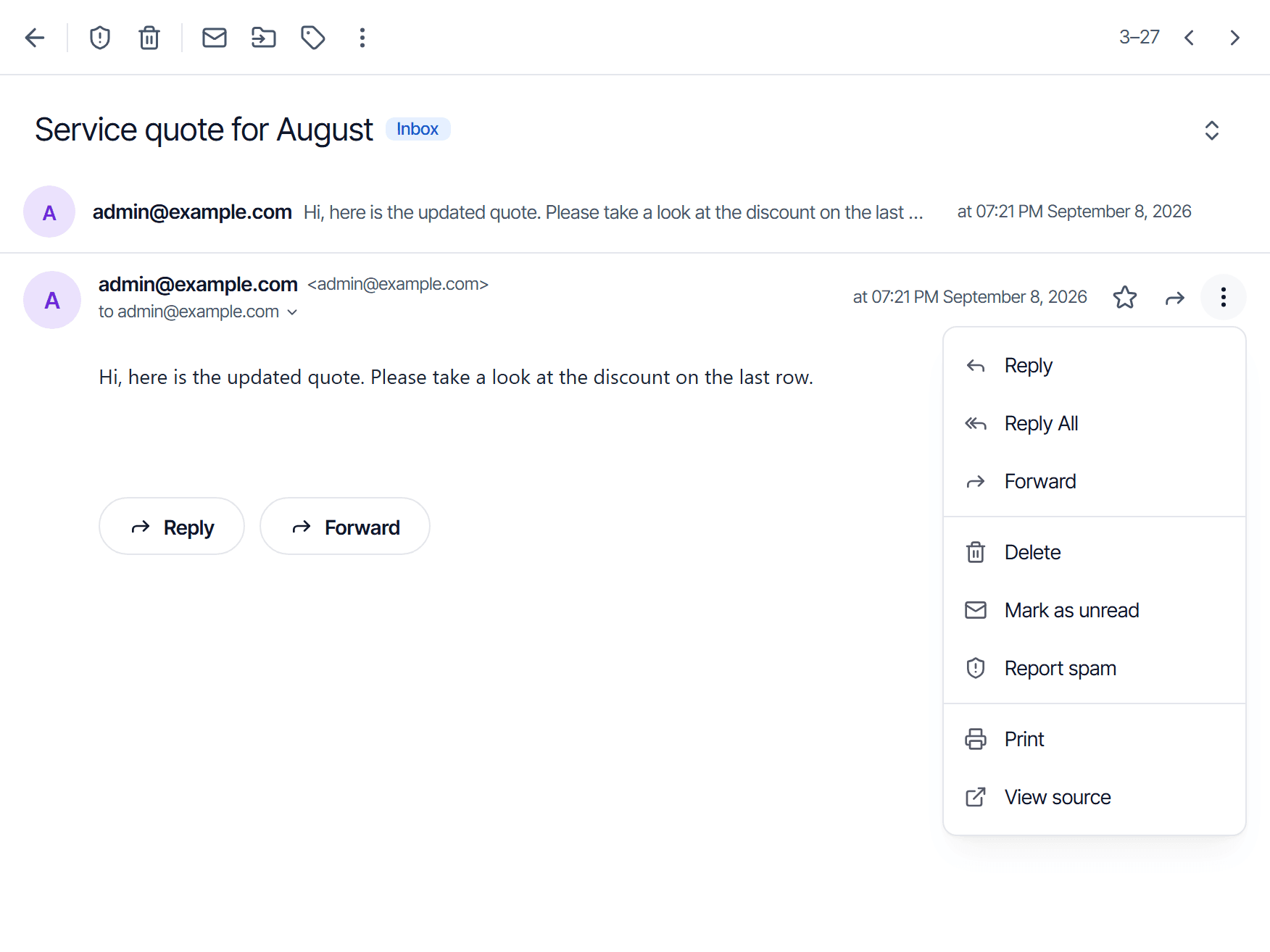
Open the message, click the More icon in the top right of the message block, then pick:
| Choice | The message goes to |
|---|---|
| Reply | the sender only |
| Reply All | the sender and every address on the To and Cc lines |
| Forward | whoever you type in, carrying the full body and attachments |
The editor opens inside the conversation. The earlier message is quoted for you — click Hide quoted text if it gets in the way.
The same menu holds Print and View source.
Act on several messages at once
- Tick the box at the start of each message row. To pick a group, click the arrow beside the selector at the top of the list: All, Read, Unread, Starred
- A toolbar appears with Report spam, Delete, Mark as read, Move to and More — Label lives inside More
Right-clicking a message row offers the same actions for that one message, plus Reply, Forward and Star.
Create your own folder
- In the left sidebar, click the + on the Folders row
- Fill in Folder Name
- Click Save
Hover a folder to reveal two buttons at the end of its row: + creates a subfolder, and ⋮ opens Create Subfolder · Rename · Move to folder · Delete.
Create your own label
- Click the + on the Labels row
- Fill in Label name... and pick a colour
- Click Save
A message lives in exactly one folder but can carry several labels. The full comparison is in Mailbox folder and label reference.
Check the result
- Select a message, click Move to and choose the folder you just created
- Open that folder in the sidebar: the message must be there, and gone from Inbox
Labels work the other way round: after labelling, the message stays where it was and also shows up when you click the label name.
Common problems
| Symptom | Cause |
|---|---|
| No action toolbar appears | No message is ticked yet |
| Deleting a folder also removed the mail inside | Deleting a folder takes its subfolders and messages with it — move the mail out first |
| A message disappeared after labelling | Labels never move mail; you most likely clicked Move to |
Write and send
Fill in recipients, add CC and BCC, attach files within the limits, insert a ready-made template and save a draft in your Email Business mailbox.
Email signature
Create one or more signatures for your mailbox, pick the default for new messages and for replies, and set where the signature sits relative to quoted text.