Change the logo and use your own webmail domain
Replace the logo and favicon of the webmail interface, and point a domain of your own at it as the address staff type in.
Staff open webmail every day. This page changes the logo, the browser tab icon, and the address they type — so it looks like your company's system.
Before you start
- Logo and favicon files in a supported format, see the table below
- For a custom domain: rights to edit that domain's DNS
Change the logo and favicon
Go to Email Business → Branding.
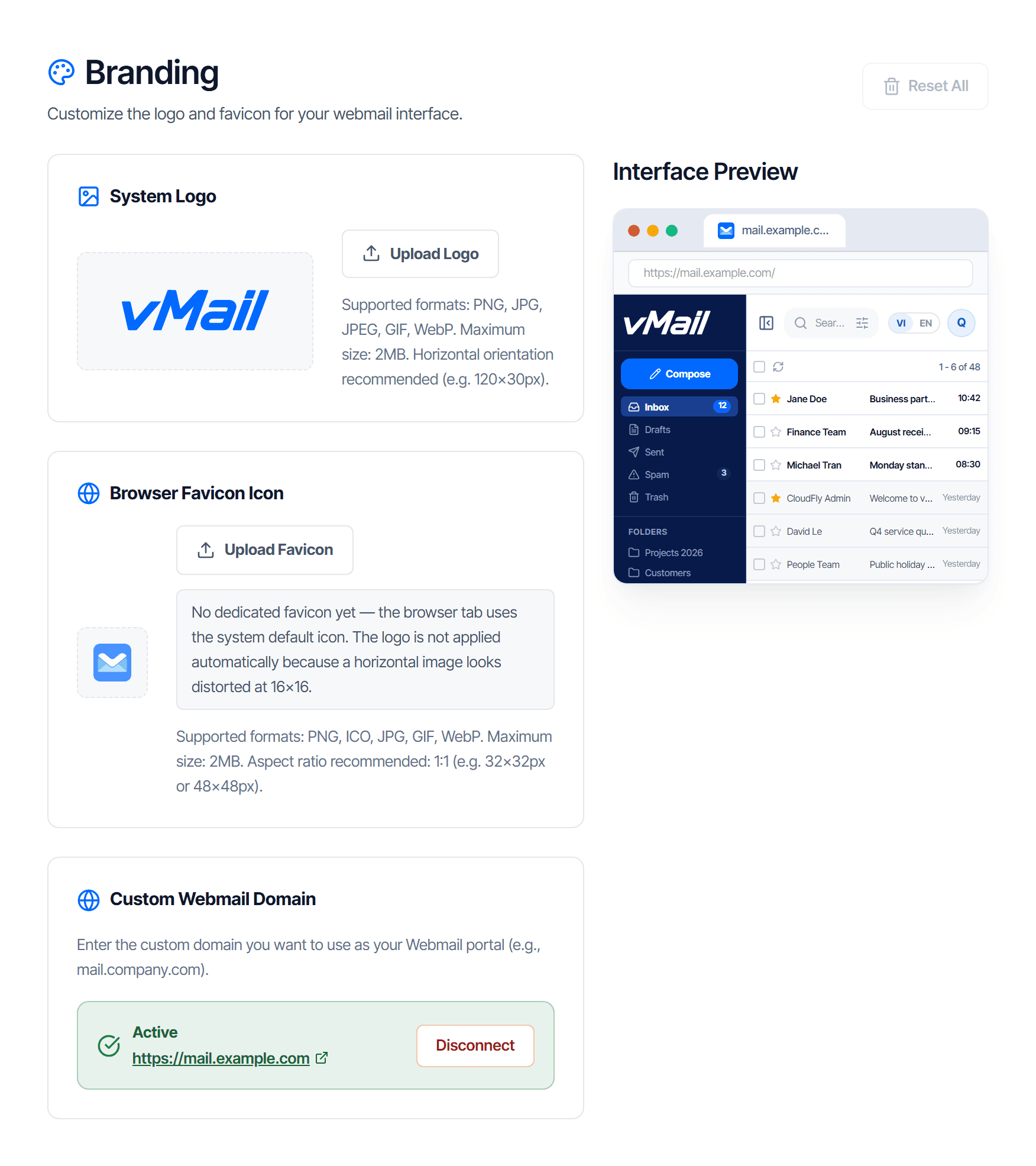
| Logo | Favicon | |
|---|---|---|
| Appears in | the top corner of webmail | the browser tab |
| Formats | PNG, JPG, JPEG, GIF, WebP | PNG, ICO, JPG, GIF, WebP |
| Maximum size | 2 MB | 2 MB |
| Recommended dimensions | landscape, e.g. 120×30 px | square 1:1, e.g. 32×32 or 48×48 px |
A logo with a transparent background works on both the light and dark interface. An image with a white background shows up as a white block on the dark one.
Logo and favicon are independent settings
Uploading or removing the logo never affects the favicon, and the reverse is also true.
To use the logo as the favicon, click Use logo as favicon — the system creates a separate favicon from the logo image. From then on, changing the logo does not change the favicon. To keep them in step you must click that button again after every logo change.
The Reset All button restores both the logo and the favicon to the CloudFly defaults. There is no undo — you have to upload your images again.
Your own webmail domain
The Custom Webmail Domain block lets staff reach mail at a company address such as
mail.example.com instead of the default one.
Enter the domain and follow the instructions shown. The block switches to Active with the full address once it is done. The Disconnect button removes it and everyone goes back to the default address.
Warn staff before changing or removing it. The webmail address lives in their bookmarks; changing it silently creates a morning where nobody can get to their mail.
Check your work
- Sign out of webmail, or open a private window
- The new logo appears in the top corner and the new favicon on the tab
- With a custom domain: type that address directly — the sign-in page must open and the certificate must be valid, with no browser warning
Seeing the old image after a change is usually the browser cache rather than a fault. Reload bypassing the cache and check again.