Track storage across the whole domain
Read the storage screen to see how far your allocation has gone, who is nearly full, and who is already over their limit and no longer receiving mail.
The Users page tells you how much one mailbox uses. This page covers the whole domain, and who needs attention first.
Before you start
- Administrator rights on the domain
The five numbers at the top
Go to Email Business → Storage.
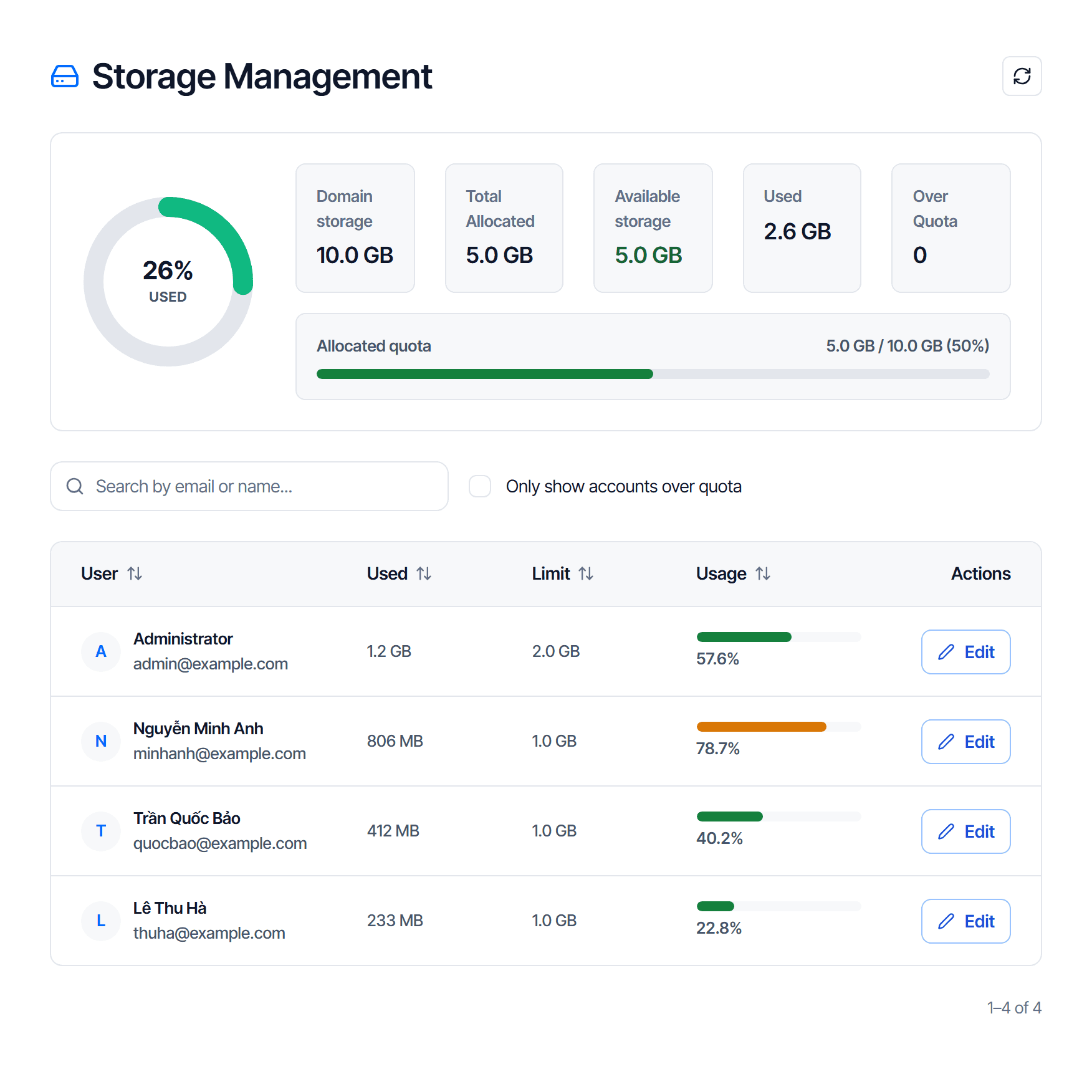
| Number | What it means |
|---|---|
| Domain storage | the ceiling of the whole plan |
| Total allocated | how much you have handed out to mailboxes |
| Available space | what is left unallocated — the ceiling on every increase |
| Used | how much actual mail occupies |
| Over limit | how many mailboxes are over their own quota |
Easiest to confuse: Total allocated (what you promised) versus Used (what is actually occupied). Running out of room for new mailboxes is about allocation, not disk.
Over limit is the number to act on
A mailbox over its quota stops accepting new mail. Senders get a failure notice; the user just sees mail suddenly stop arriving.
| Over limit | Means |
|---|---|
0 | nobody is losing mail — the normal state |
| anything else | exactly that many people are not receiving mail |
Turn on Only show accounts over quota to filter down to that group, then raise their storage or ask them to delete mail.
Read the user table
The table below lists each mailbox with used, quota and a usage percentage.
| Usage | What to do |
|---|---|
| above 90% | raise the storage before it fills |
| below 10% with a large quota | candidate to cut and reclaim available space |
| 100% or more | losing mail right now, deal with it |
The edit button opens the storage dialog directly — no need to go back to the Users page.
Reclaim space for free
In the order worth trying:
- Cut the quota of a mailbox with surplus. The difference returns to available space immediately
- Delete a mailbox nobody uses. Returns both storage and an account slot
- Upgrade the plan when neither has room left
Do not cut below that mailbox's own used figure — see the warning in Change an existing mailbox's storage.
The main page has a short version
Email Business → Main page repeats these figures in brief, plus a top storage consumers block — the three heaviest mailboxes. Use it for a quick glance; come here to act.
Check your work
After cutting one mailbox's quota:
- Available space grows by exactly what you cut
- Total allocated drops by the same amount
- Used does not change — you changed a promise, not any mail
Point 3 is the quick way to confirm you did not delete anything by accident.
Mailbox storage
Raise or lower the storage of a mailbox, reclaim unused space for someone else, and avoid setting a limit below what is already used.
Block senders
Use the Email Business trusted and blocked lists, watch the stuck mail queue, and tell this screen apart from the similarly named one in Email Security.