Reset a mailbox password
Set a new password for someone who forgot theirs, and know in advance what happens when that account is the domain owner.
When someone forgets their password you set a new one. There is no "send a recovery link" flow.
Before you start
- Administrator rights on the domain. See Grant administrator rights
- A safe way to give the new password to the user — not through the mailbox itself
Set the new password
Find the account
Go to Email Business → Users and use the search box.
Open the reset action
Click the three-dot button in the Actions column and choose Reset Password.
Second route: the Reset Password button at the bottom left of the Edit dialog. Clicking it closes that dialog and any unsaved changes there are lost.
Type the new password twice
| Field | Constraint |
|---|---|
| New Password | at least 8 characters |
| Confirm Password | must match exactly |
The dialog prints the address you are working on — read it before saving, user lists often contain similar names.
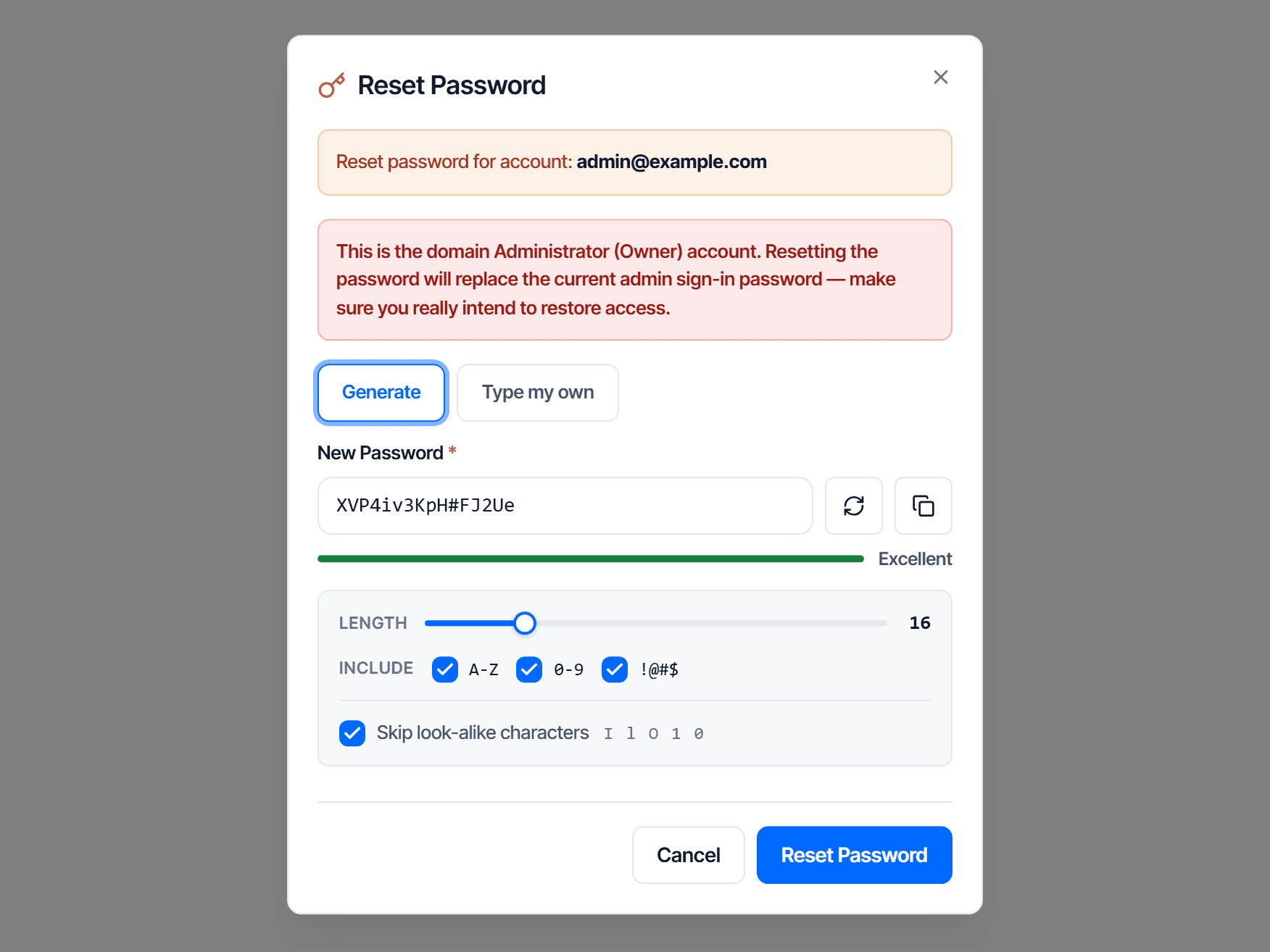
If the two fields differ, the error appears under the field.
The domain owner account gets its own warning
Resetting the password of the account marked domain owner shows an extra warning: this password is also the console login. Changing it changes the owner's console credentials too.
That is the right action when you need to recover lost access. But doing it by mistake locks the owner out of the console until they receive the new password.
After the reset
The password takes effect immediately. The user must:
- Sign in to webmail again with the new password
- Update the password in every configured mail app — Outlook, phone mail, scan-to-mail printers. See Set up Outlook and your phone
Step 2 is the one people skip: old apps keep retrying with the old password, and some systems temporarily lock an account because of it.
How to hand over the new password
- Do not send it to the mailbox you just changed — they cannot get in
- Do not send the login address in the same message
- Workable: read it out over the phone, an internal channel, or a personal address you already know
Ask them to change it again after their first sign-in.
Check your work
The password reset successfully toast means you are done on your side.
You have full confirmation when the user signs in to webmail and receives a test message. Signing in but not receiving mail is unrelated to the password — see Publish the four mail DNS records.
When there is no reset option
The action only appears for accounts you have rights over: you are not an administrator of the domain, or the account is the owner and you are not.
Resetting two-step verification when staff lose their phone
| What | Detail |
|---|---|
| Who can do it | The customer account, or the account marked domain owner |
| Where | The three-dot menu in the Actions column for that row → Reset Two-Step Verification |
| Confirmation | The customer account retypes the target mailbox address; the domain owner re-enters their own password |
| After the reset | The mailbox is signed out of every device; the next sign-in only needs the password — remind staff to turn two-step verification back on if they want it |
Grant admin access
Grant administrator rights to a mailbox that already exists in your domain, so that person can manage accounts and settings alongside you.
Mailbox storage
Raise or lower the storage of a mailbox, reclaim unused space for someone else, and avoid setting a limit below what is already used.