Manage contacts and stored files
Add contacts one by one or import them in bulk from vCard, and see which files are quietly taking up mailbox storage.
Two small screens that get asked about often: where the contact list lives, and where uploaded files are kept.
Contacts
Go to Email Business → Contacts.
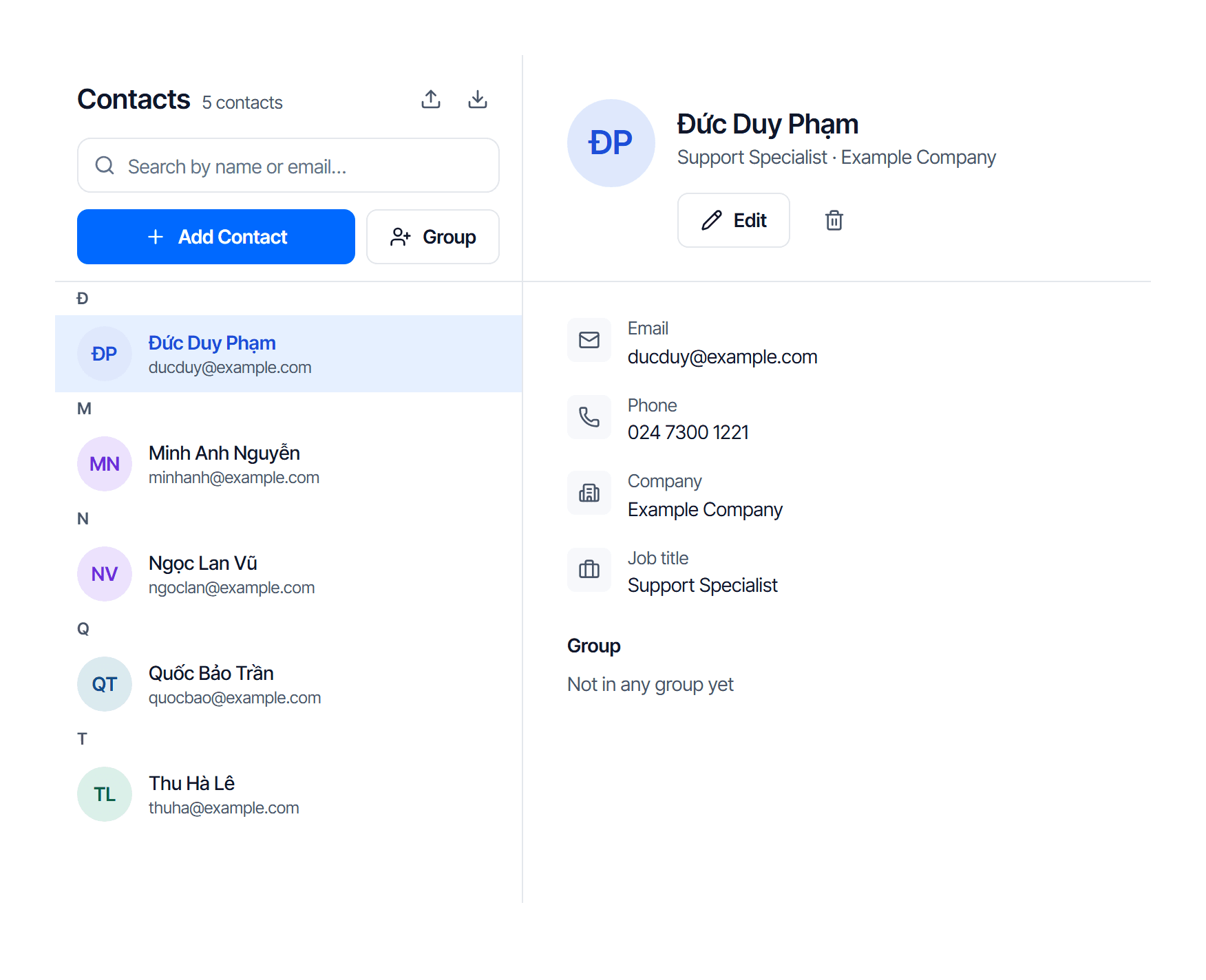
Add one at a time
Click Add Contact, fill in the details, save. Select a contact in the list to see its details on the right.
Import from vCard
Do not retype: export the old address book as a vCard file (.vcf) and bring it in with the
Import vCard button at the top right — nearly every mail service and phone can export that format.
An empty address book is normal
The "No contacts yet" line on a new account is not a fault. Contacts are not filled in automatically from people you have emailed.
File manager
Go to Email Business → File manager.
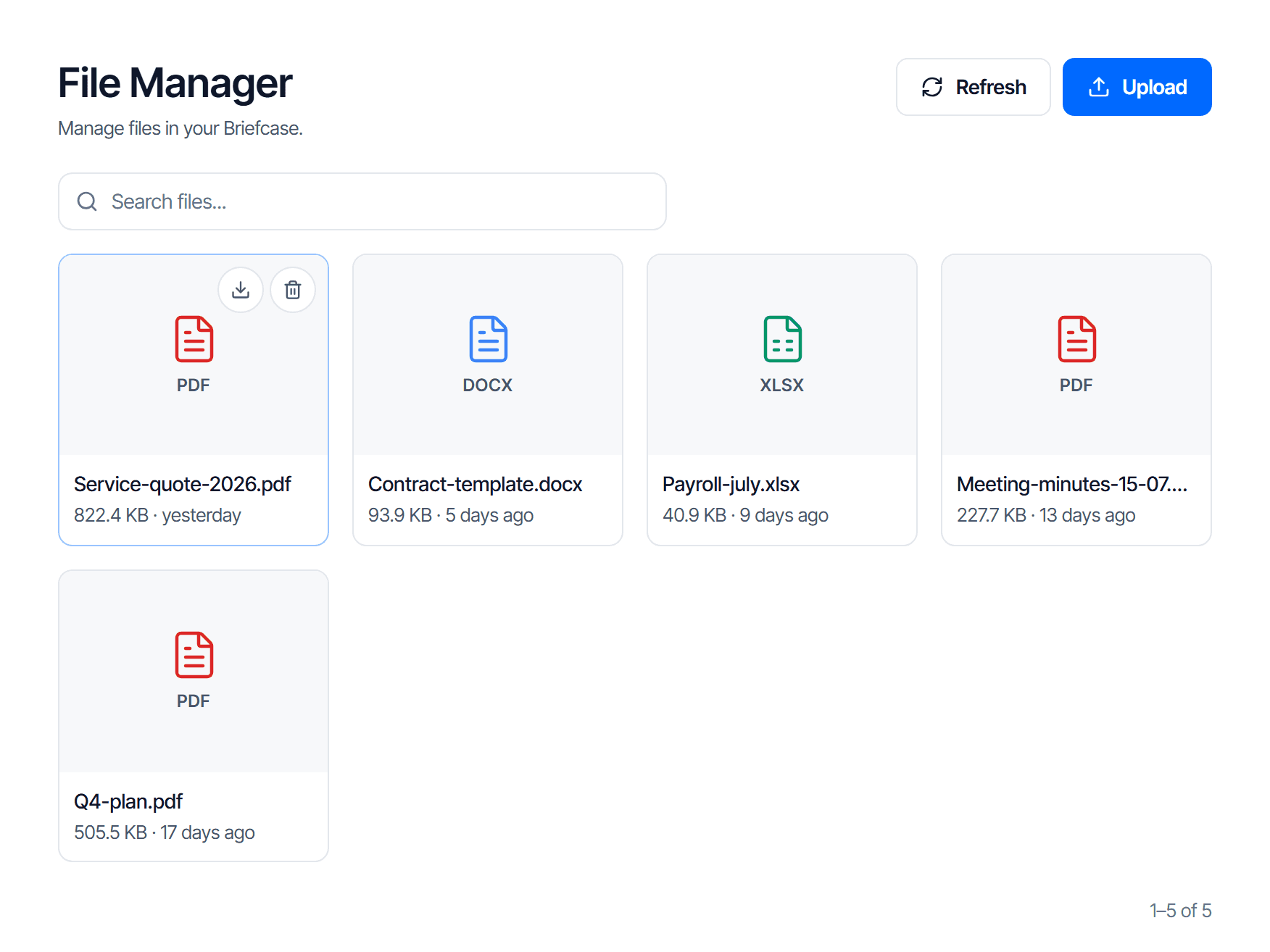
Each row shows the file name, its size and when it was uploaded.
The size column is the one worth looking at: files here take mailbox storage like mail does — a 14 MB image costs as much as several hundred text messages. A mailbox nearly full with few messages is a reason to open this page first; cross-check totals in Track storage across the whole domain.
Check your work
Contacts: the contact you just added appears when you type the first few letters of the name into the recipient field while composing.
File manager: after deleting a large file, the Used figure on the storage page drops accordingly. Not dropped yet? Click reload — the system recalculates on a schedule.
Logo & webmail domain
Replace the logo and favicon of the webmail interface, and point a domain of your own at it as the address staff type in.
Troubleshooting
Work from symptom to cause in order, for mail that never arrives, mail that lands in spam, mailboxes you cannot create, and mail apps that will not connect.