Change an existing mailbox's storage
Raise or lower the storage of a mailbox, reclaim unused space for someone else, and avoid setting a limit below what is already used.
Storage is allocated when a mailbox is created, not when it is used: an empty mailbox still holds its whole share.
Before you start
- Administrator rights on the domain
- Knowing how much the mailbox actually uses — the Storage used column tells you
Read before you change
Go to Email Business → Users and read two things.
The strip at the top has Available space — the part not yet handed out. That is the ceiling on every increase.
The Storage used column on each row reads <in use> / <allocated>. The gap between the two
numbers is space being held by nobody.
| Example row | Reads as |
|---|---|
120MB / 1024MB | 1 GB allocated, 120 MB used — lots of surplus, safe to cut |
980MB / 1024MB | nearly full — raise it |
0MB / 5120MB | holding 5 GB and using none — the first candidate to reclaim |

Change the storage
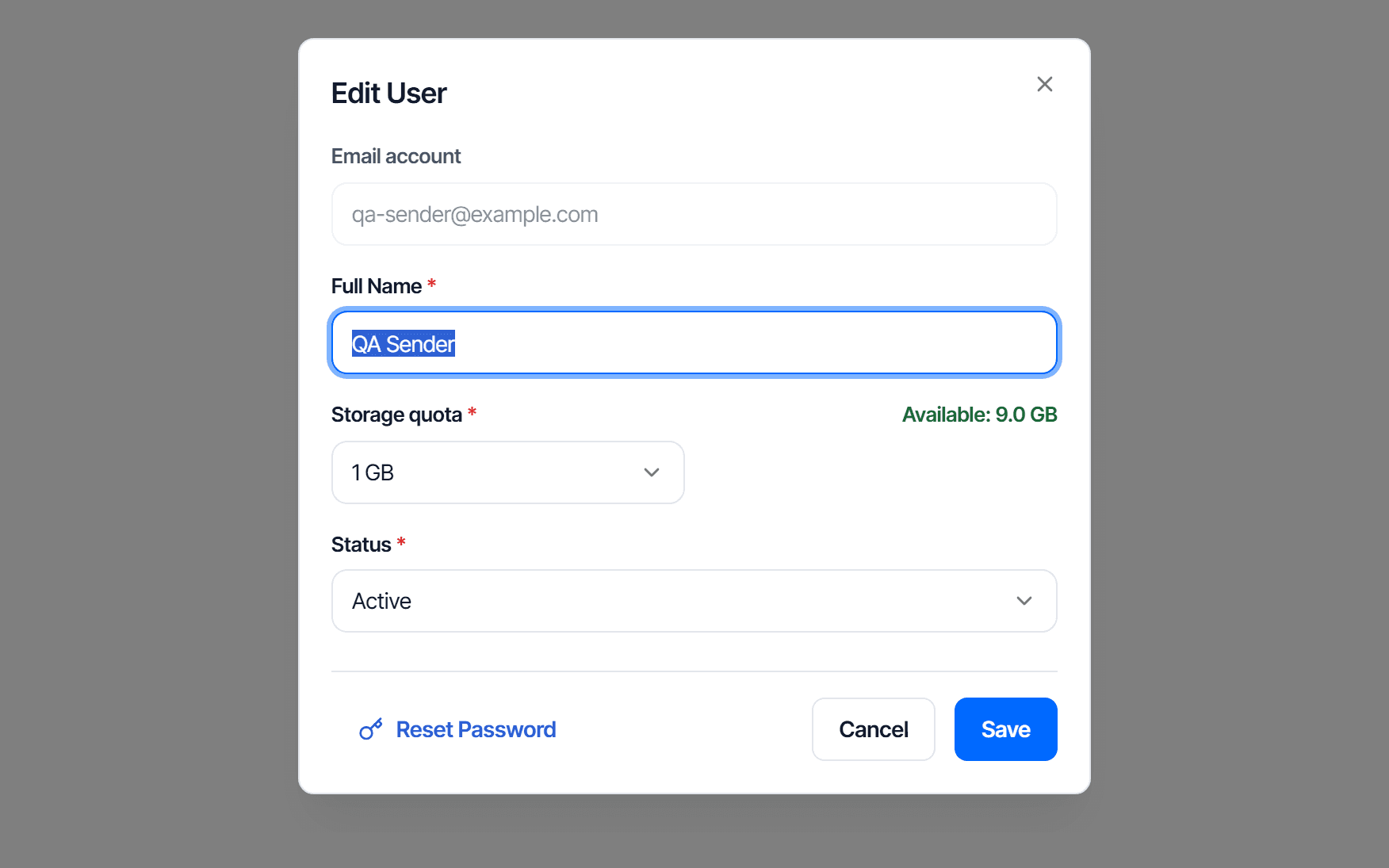
Open the edit dialog
Actions → three-dot button → Edit.
The Email field is locked. Changing an address means creating a new mailbox.
Pick the new size
The Storage quota field is a list of preset sizes plus Custom for any value in MB.
Sizes larger than the available space are greyed out with (Exceeds available) — not a fault, it means your plan's storage is fully handed out.
Click Save. The numbers in the top strip update immediately.
Cut storage to reclaim surplus
The fastest fix when you have run out of room for new mailboxes, and it costs nothing.
- Scan the list for rows whose left number is far below the right one
- Edit that mailbox and pick a size that actually fits
- The surplus returns to Available space immediately
- Repeat until there is room for the new mailbox
Never set a limit below what is already used
The system only blocks you from exceeding the available space. It does not stop you setting 512 MB on a mailbox already holding 900 MB.
A mailbox over its limit stops accepting new mail — senders get a failure notice, while the user sees nothing unusual beyond mail no longer arriving. Always check the left-hand number in the Storage used column before cutting, and leave headroom.
For a mailbox already over its limit, raise the storage, or ask the user to delete mail before you lower it.
Check your work
After saving:
- The row's Storage used column shows the new right-hand number
- Available space in the top strip changes by exactly the difference
- For a mailbox you just raised: the user receives new mail normally again
If the strip does not change, click reload before concluding something is broken.
When every size is greyed out
Available space is zero — your plan's storage is fully allocated. Three options, in the order worth trying:
| Option | What it gets back |
|---|---|
| Cut the storage of a mailbox with surplus, as above | Free, takes effect immediately |
| Delete a mailbox nobody uses | Both storage and an account slot |
| Upgrade the plan | When neither of the above has room left |
Custom with a smaller number also works, as long as it stays within the available space.
Reset a password
Set a new password for someone who forgot theirs, and know in advance what happens when that account is the domain owner.
Domain storage
Read the storage screen to see how far your allocation has gone, who is nearly full, and who is already over their limit and no longer receiving mail.