Set up Outlook and your phone
Get the right incoming and outgoing server settings, choose between IMAP and POP3, and avoid the most common sign-in mistake.
Mailboxes work in webmail with no setup. This page is for people who want to read their mail in Outlook, Thunderbird, Apple Mail or a phone app.
Before you start
- The mailbox exists and can sign in to webmail. See Create your first mailbox
- The password of that mailbox
- The four mail DNS records are correct. See Publish the four mail DNS records
Get the settings
Go to Email Business → IMAP/SMTP configuration: two tables, Incoming Mail Server and Outgoing Mail Server.
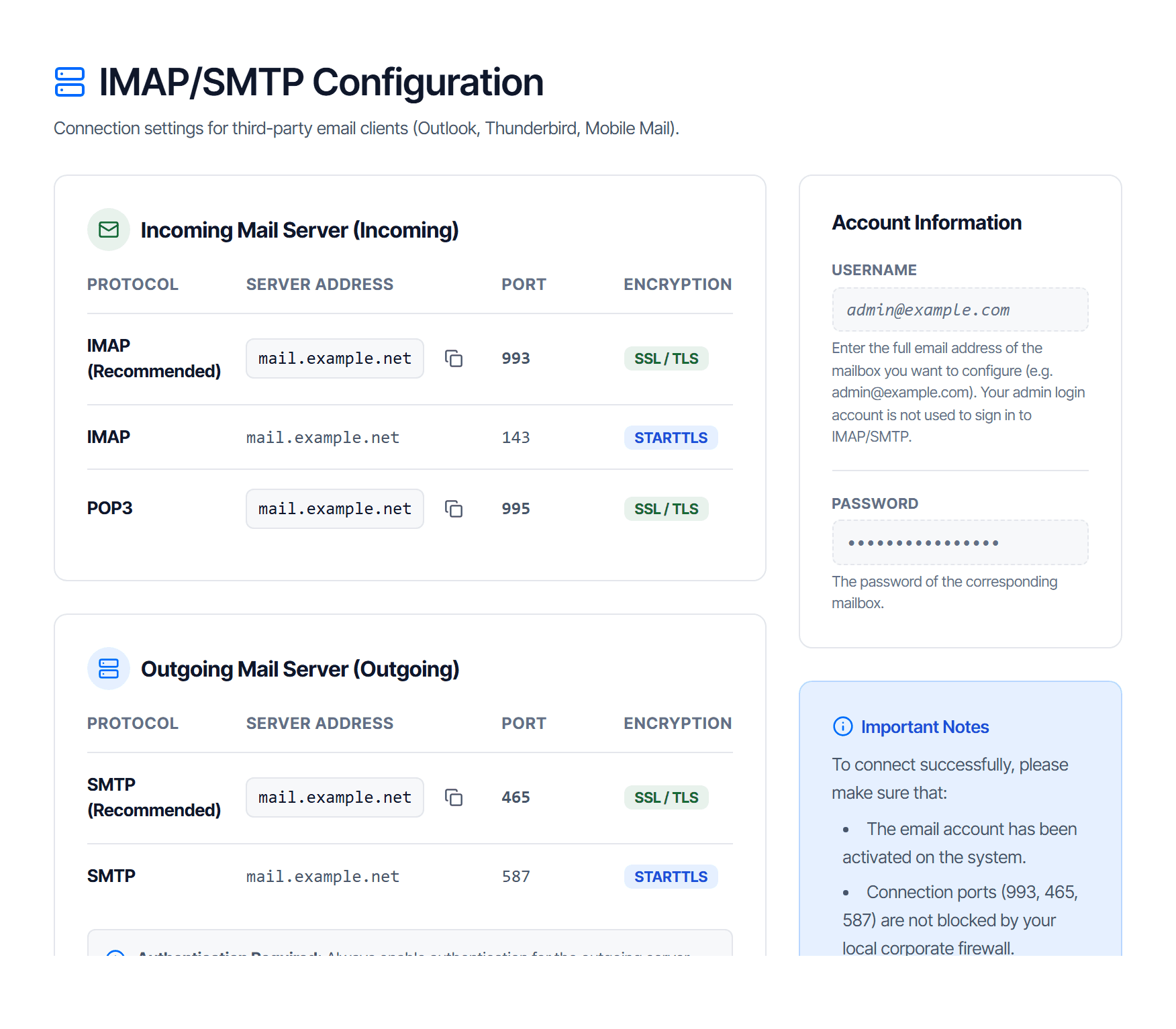
The server address belongs to your domain, usually shaped like mail.<your domain> — always
copy it from your own screen.
| Direction | Protocol | Port | Security |
|---|---|---|---|
| Incoming | IMAP (recommended) | 993 | SSL / TLS |
| Incoming | IMAP | 143 | STARTTLS |
| Incoming | POP3 | 995 | SSL / TLS |
| Outgoing | SMTP (recommended) | 465 | SSL / TLS |
| Outgoing | SMTP | 587 | STARTTLS |
Use the recommended pair — 993 and 465 — unless your network blocks them.
Staff can look these settings up themselves
In webmail, every mailbox has Settings → IMAP/SMTP Configuration: the same two tables, that mailbox's own username and the steps for each app. No need to send the settings to each person.
Three fields to fill in
| Field | Value |
|---|---|
| Username | the full email address of the mailbox, for example nam@example.com |
| Password | the password of that mailbox |
| Outgoing server authentication | on, reusing the same username and password |
Your console login is NOT a mailbox account
This is the most common mistake. The account you use to sign in to the console is a service administrator account — it has no mailbox, so it cannot sign in over IMAP or SMTP.
The username must be the address of a mailbox created under Users. If you want mail for yourself, create yourself a mailbox the same way you create one for staff.
Those three fields are everything an app needs — no separate app password.
Mail apps don't ask for the two-step code either
Mail apps don't ask for a two-step verification code, even when the mailbox has it turned on — two-step verification applies to Webmail sign-in in the browser only. See Turn on two-step verification.
IMAP or POP3
Getting this wrong loses mail.
| IMAP | POP3 | |
|---|---|---|
| Mail lives on | the server | the machine that downloaded it |
| Reading on several devices | ✅ read state and folders sync | ❌ each machine has its own copy |
| Deleting on the phone | removes it everywhere | only on that machine |
| Machine dies | mail is still on the server | mail dies with it |
Use IMAP unless you deliberately want mail pulled down to a single machine to free server storage.
Switching from POP3 to IMAP later does not move already-downloaded mail.
Click-by-click steps per app
The IMAP/SMTP configuration page has a device and app setup guide section with four tabs — Outlook · Thunderbird · Apple Mail · Mobile Mail — each with detailed steps and the server address already filled in for your domain.
Use that instead of copying from documentation.
Check your work
The setup is correct when both directions work:
- Receiving — mail already in the mailbox appears in the app
- Sending — send a message from the app to an outside address and it arrives
Step 2 gets skipped and is the one that usually fails: receiving but not sending is nearly always outgoing server authentication left off.
When it will not connect
Work through these in order, stopping at the first thing that looks wrong.
| # | Suspect | How to confirm and fix |
|---|---|---|
| 1 | Wrong username or password | Try signing in to webmail with the same pair. If that fails, the problem is the account, not the app — see Reset a mailbox password |
| 2 | Blocked ports | Company networks often block 993, 465 and 587. Try over a phone hotspot: if it works there, ask your network team to open the ports |
| 3 | Outgoing authentication is off | Distinctive symptom: receiving works, sending fails |
| 4 | The password was just changed | Every configured app must be updated, scan-to-mail printers included. Old apps retrying can get the account temporarily locked |
Block senders
Use the Email Business trusted and blocked lists, watch the stuck mail queue, and tell this screen apart from the similarly named one in Email Security.
Import old mail
Pull all mail from Gmail, Outlook or your old server into the new mailbox over IMAP, and choose correctly between a single import and a bulk import.