Grant admin rights to someone else
Grant administrator rights to a mailbox that already exists in your domain, so that person can manage accounts and settings alongside you.
You grant admin rights to a mailbox that already exists in your domain. There is no invitation email, and you cannot grant rights to an outside address.
Before you grant
- The person already has a mailbox in your domain. If not, create one first
- You are signed in as the owner or as an existing administrator
Grant the rights
Go to Email Business → Administrators and click Add administrator.
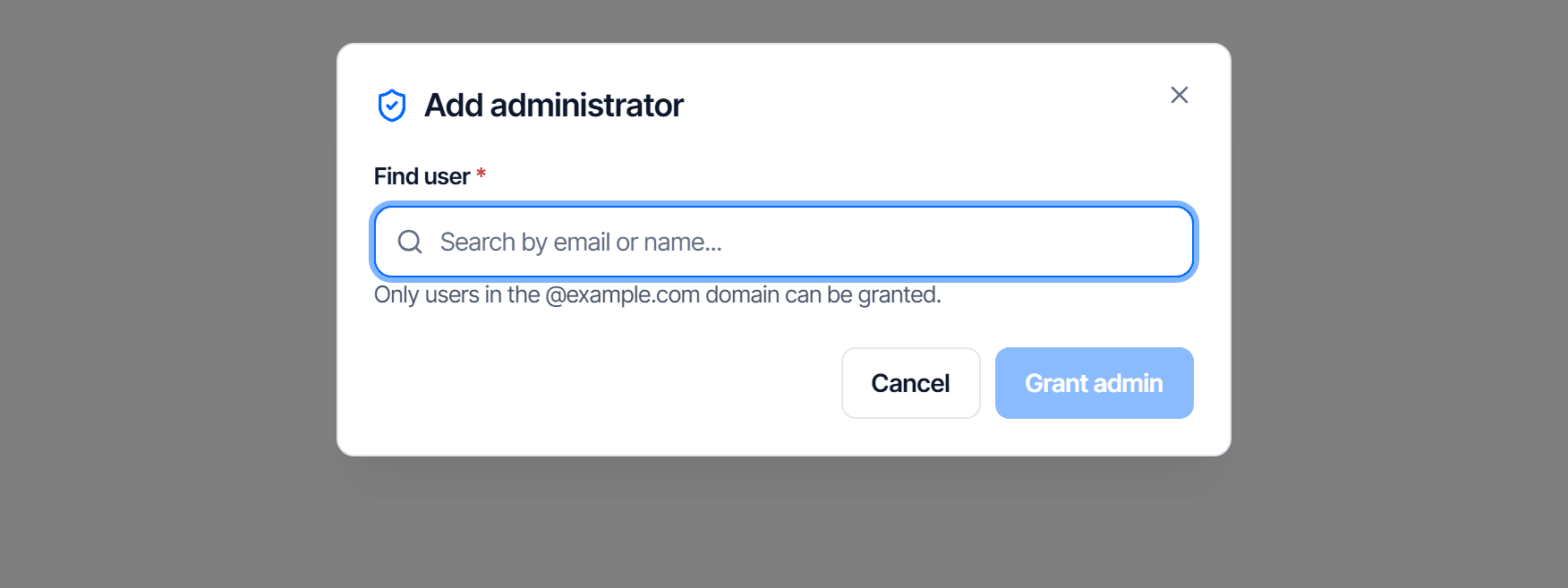
The dialog already lists the users inside your own domain who are not administrators yet — exactly what the note under the title says. Click a person to select them (the row turns blue with a check mark). If the list is long, type a name or mail address into Find user to filter it.
Once selected, click Grant admin.
Check your work
- The person appears in the Administrators table
- The count next to the heading goes up by one
Ask them to sign in again. They will see the admin area that was not there before.
The owner role
The account created together with the domain carries an Owner label in the table. This is not the same as a regular administrator, and it cannot be reassigned from the interface.
If the person holding the owner account leaves the company, contact CloudFly before deleting that account. Deleting first and asking afterwards leaves you with nobody able to administer the domain.
Revoke the rights
Use the Actions column on that row in the Administrators table.
Revoking admin rights does not delete the mailbox. The person still sends and receives mail normally, they only lose access to the admin area. To remove the account entirely, do that on the Users page.